• Skip to primary navigation
  • Skip to main content
  • Skip to primary sidebar
PPC Mastery Course

PPC Mastery Course

Learn Google AdWords from an Expert

  • Buy PPC Course
  • Reviews
  • Resources
  • About Us

PPC News

Google AdWords and GDPR Compliance: How GDPR affects AdWords tracking and targeting

October 11, 2018 by Jeff Sauer

Over the past month, we’ve talked a lot about how GDPR affects data collection.

But what about online advertising? How big of an impact will GDPR have on AdWords users?

The European Economic Area (EEA) is the second largest consumer market in the world. The EEA also represents the third largest search advertising economy on the planet.

So, if you’re using Google AdWords to advertise inside of the EEA (or outside), you need to be aware of GDPR, and its implications.

In this post and video, we’ll look at how GDPR affects search advertising on AdWords. We’ll also discuss which AdWords features could cause GDPR related problems. And we’ll review some strategies to help you use AdWords within the parameters of GDPR.

GDPR is here – What does this mean for AdWords?

In case you’ve had your head down, mining keywords and building out ad groups, here’s a brief update on what GDPR is and how it impacts online marketing.

What is GDPR?

GDPR is the new European Union (EU) data privacy regulation. This legislation was enacted to protect the personal information of EU citizens. GDPR went into effect on May 25th, of 2018.

GDPR governs the way data can be collected when EU citizens interact with your marketing efforts. Under GDPR, you cannot collect personal data from your EU website users without their consent.

Does GDPR apply to your AdWords campaigns?

You don’t have to be located in the EU or EEA to be affected by GDPR. If your advertising reaches EU citizens, then your data collection methods need to adhere to GDPR.
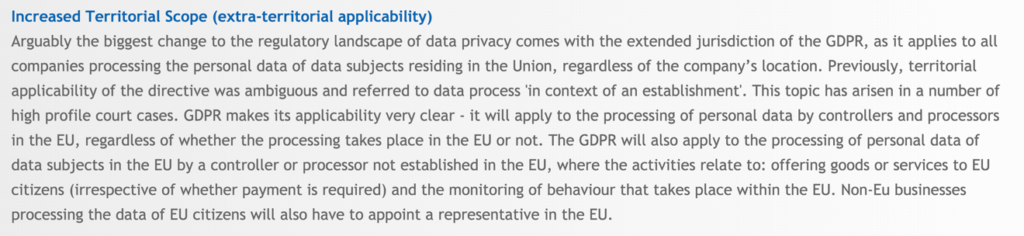
Caveat – GDPR might protect EU citizens in the US or other areas?

There is some ambiguity about whether GDPR protects EU citizens traveling abroad. I don’t have a definitive answer or opinion about how GDPR affects EU web users in the US or other areas. For more clarity on this issue, I would advise that you follow up with an attorney who has expertise on this subject.

How does the GDPR impact your AdWords campaigns?

The bottom line is this:

GDPR affects advanced AdWords users who are running campaigns targeting EEA countries.

Let’s break down the advertising process, so we understand how to use AdWords in compliance with GDPR.

Geo-targeting for AdWords under GDPR

It’s always a good practice to geo-target your AdWords campaigns. Precise geographic targeting will often yield better data about your ad campaign performance.

With GDPR in effect, I would view geo-targeting as mandatory.

You should create specific campaigns for each GDPR country you target. And, do not target GDPR and Non-GDPR nations within the same ad campaign.
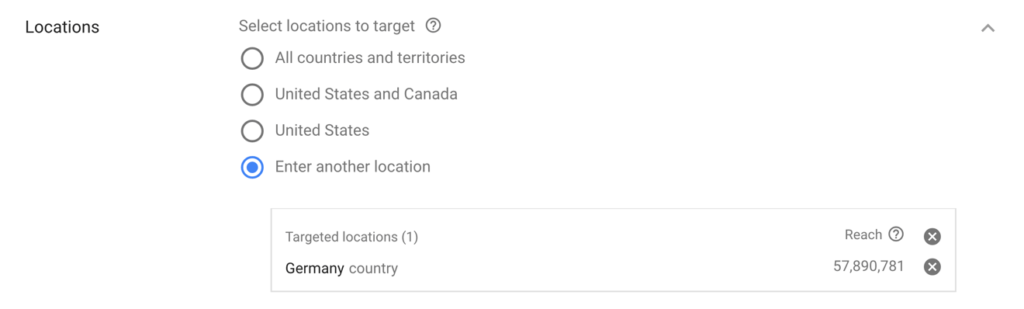
What if you’re not targeting EU users with any of your AdWords campaigns?
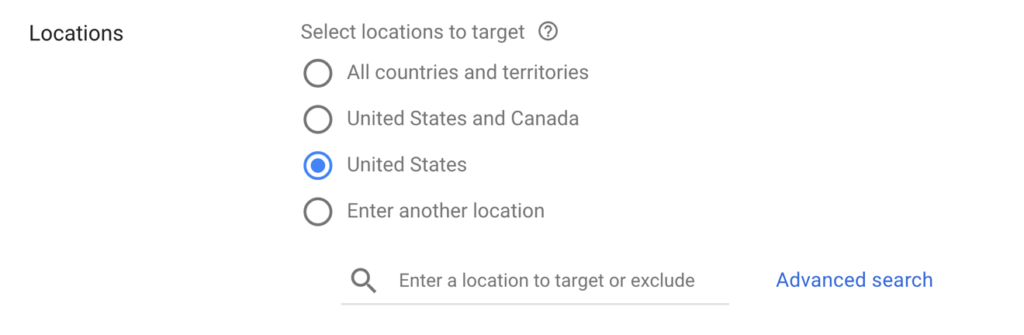
If you are not targeting EU users with your ads, and EU web visitors are not reaching your landing pages, then you should be clear of any GDPR issues. But your attorney is the only person who can completely clarify this for you. So, discuss your specific scenario with your lawyer if you’re concerned that your advertising strategy might violate GDPR.

The main point I want to stress is that geo-targeting on AdWords is critical post GDPR. If you don’t gain any business from EU customers, exclude those countries from your advertising. And be explicit in your targeting so that you don’t risk accidental GDPR violations.

What type of AdWords activity in the EU is affected by GDPR?

Let’s start with the good news. Basic search advertising should remain unaffected by GDPR. Standard search advertising targets keywords, not users. Search ads display for users based on their anonymous search engine queries. So, in its purest form, AdWords search advertising doesn’t rely on any personal data.

Advanced AdWords features and GDPR

GDPR impacts many advanced AdWords features like conversion tracking. Of course, I’m referring to some essential functions of AdWords as being advanced. But if you’ve taken my PPC Course, you will know that conversion tracking is a minimum requirement for being successful with AdWords. Many essential AdWords tracking and targeting strategies rely on these features.

Here are some of the features that collect and retain personal data.

Conversion tracking

Conversion tracking sets cookies in your visitor’s browser. And your AdWords tracking connects your user’s personal data to their keywords searches. That means even basic AdWords conversion tracking has the potential to collect protected data.

Remarketing

When you use remarketing, you can show ads based on previous interactions visitors had with your website. So once again, this advertising technique may be using personal user data that is protected under GDPR.

Remarketing Lists for Search Ads (RLSA)

RLSA is typically one of the most effective AdWords strategies. But the data used to generate your RLSA information may also be subject to GDPR compliance.

Customer Match and Store Shopping

These features require you to upload customer data into AdWords. If you enter EU user data into AdWords without permission, you are likely to violate GDPR.

We just identified some of the most necessary and efficient AdWords features as being risky under GDPR.

So how do you use these features but avoid the risk? It comes down to a matter of consent.

GDPR requires consent for personal data collection

Consent means that your EU website visitors permit you to track their personal data.

User consent according to the advertiser platforms

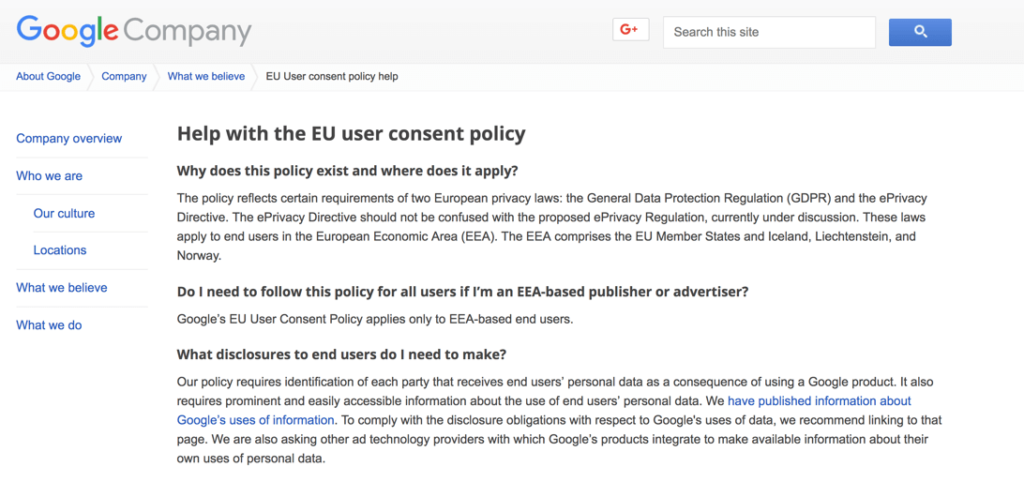
Google has issued some documentation about getting user consent. But this information is not very clear.
Facebook’s information about user consent is much more defined.
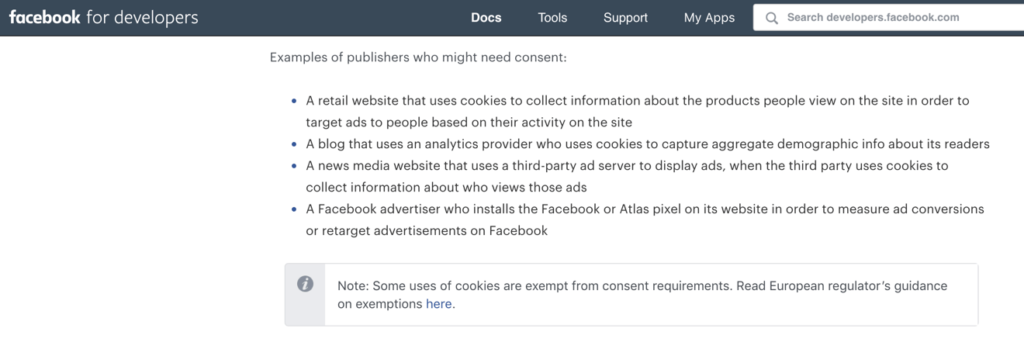
Their documentation also includes some examples of how to obtain user consent.

Facebook documentation on GDPR
Source: https://developers.facebook.com/docs/privacy

And If you’ve been following this blog, you’ve heard me talk about Cookie Consent.

Cookie consent for user data collection

Cookie consent refers to getting your users’ permission to collect their data using cookies and tracking pixels.

One of the best tools I’ve found for obtaining and tacking user consent is Cookiebot. The Cookiebot consent notification tool is transparent, simple, and effective.
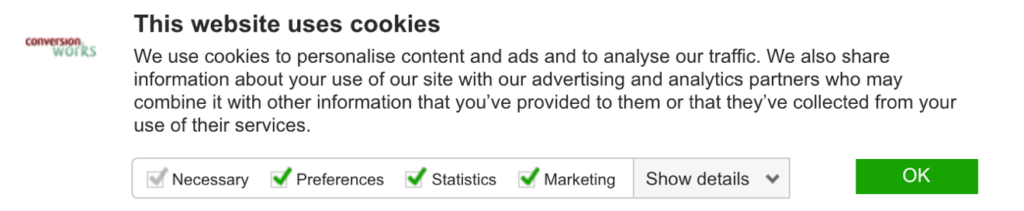
There are many other consent notification tools available. You can read our article on cookie consent for a more detailed explanation of how tracking notification works.

User consent for AdWords lead generation campaigns

You also need consent from your EU users for opt-in forms and email marketing. Thrive Themes published an excellent article on email address opt-ins and GDPR compliance.

If your AdWords campaigns are collecting email addresses, you need to let users know what happens after they are opted-in. One way to be more explicit about your data collection is to link to your privacy policy in your opt-in form. Linking to your privacy policy will help your users understand what happens to their data after they submit their email address.

Consent for AdWords Customer Match and data uploads

Before we get into the details here, I am going to offer this warning: tread lightly.

Customer match involves taking personal user information from your database and giving it to Google. Did your customers opt into this process? Probably not, unless you told them what you were doing.

Under GDPR you need to let your users know how you’re going to use their data. And your EU users have to give you permission to use and transfer their data. Without consent from your EU users, data uploads to Google can put you at risk for a GDPR violation.

I’ve recorded a prior video about how Customer Match is a highly accurate remarketing tool. It’s an incredibly cool feature that matches your customer data across multiple Google platforms.

So, you might want to continue using Customer Match. But make sure you understand the risks.

Here are some things you can do to limit your risk with Customer Match

  • Exclude all you EU user addresses from your upload. You can do this by deleting your EU user data from your customer match file before you upload it to Google.
  • Let your customers know, at the time of purchase or opt-in, that you’re going to be using their data for matching in search campaigns. Be explicit with this notification in your terms of use agreement. And leave the box unchecked on this notice, so your users can opt-in as required by GDPR.
  • Discuss Customer Match with your company/attorney to see if it’s worth the risk. Do a risk-reward assessment to gauge the value of using the customer match feature.

Let your users opt-out of your AdWords tracking

Here’s a final consideration when it comes to consent, tracking and remarketing. You need to let your users opt-out of tracking and advertising. Under GDPR you need to make it just as easy for users to delete themselves from your database, as it was to opt-in. I am going to do an upcoming tutorial on user deletion tools. But for now, be aware that if you retain user data from AdWords, you’ll need to have a plan to remove that data on request.

Here’s a quick recap how GDPR affects AdWords:

  • Standard keyword search advertising should not be affected by GDPR
  • Geo-target your campaigns. Build separate AdWords campaigns targeting inside/outside EU/EEA/GDPR zone
  • You need consent for remarketing, conversion tracking, and other personal data collection/usage in the GDPR zone.
  • Do a risk/reward assessment for your more advanced targeting tactics on AdWords.

It’s time to start being careful with the collection of personal data and being judicious about how we use that data. GDPR forces us to gain consent for collecting and using the personal data of EU users with AdWords campaigns. So be clear in your consent notification and privacy policy about how you use your website visitors’ personal data.

Are you struggling to figure out GDPR compliance for AdWords?

GDPR represents a significant shift in how we use many of the tracking strategies we’ve relied on for years. Leave a comment below If you’re struggling to figure out how to use AdWords under GDPR. I’ll respond to as many questions as I possibly can.
Filed Under: PPC News

Automatic AdWords Ad Suggestions – Let them run or turn them off?

October 11, 2018 by Jeff Sauer

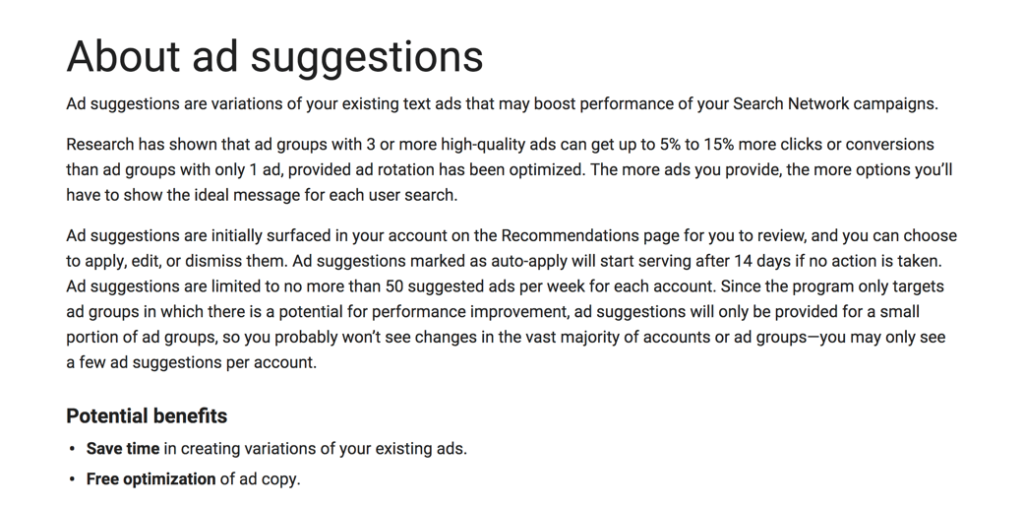
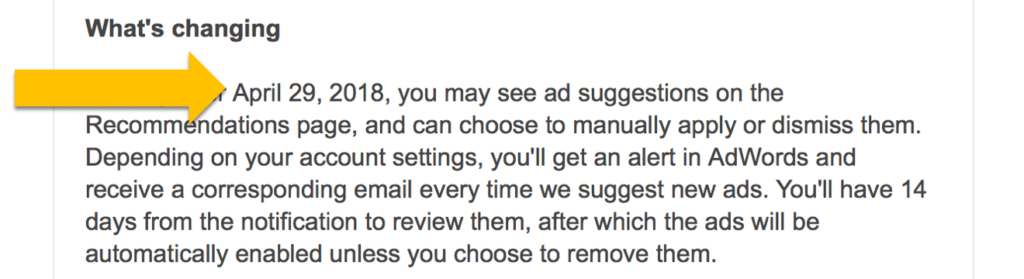
Google recently made a big announcement about a new feature in AdWords. Starting April 29th, 2018 Google will introduce “ad suggestions.”

Ad suggestions are ads created by Google that will automatically become part of your ad groups.

That’s right! Google is promising to write ads for you, and they are going to put them into your ad rotation.

Now depending on how you use AdWords this could be good or bad news.

But either way, it’s kind of shocking. It’s definitely a departure from the normal “hands-off” nature Google treats advertisers.

If you don’t want Google to start running auto-generated ads for you, then you have to take the initiative to turn off these ads or opt out of this program.

Otherwise, Google just became your new ad copywriter and optimization specialist.

So what should you do about ad suggestions –  Opt-out, give them a chance to run, or freak out that machines are taking over?

Well, the best thing we can do is make an informed decision. So, in this video and post, we’ll break down everything we know about ad suggestions right now. And we’ll discuss the pros and cons of Google’s automatic ads.

Ad suggestions are coming

I’ve received a few emails from Google about ad suggestions. And likely many of you have also received these emails, which means your account may have been targeted for this new feature.

Google says you might begin to see automatic ads in your account as soon as April 29th.

How will ad suggestions work?

Ad suggestions will display in the recommendations area of your AdWords account. Depending upon your settings, you’ll get an alert or email every time Google generates an ad for you.

You can review these ads and manually apply them to your ad groups. Or you can dismiss the ad suggestions to keep them out of your ad rotation.

Suggestions or changes?

But here’s the catch! If you do nothing, Google’s going to run your automatic ads. You have 14 days to review your ad suggestions after they appear in your account. If you don’t dismiss them, Google will automatically run your these ads for you.

This where the waters get kind of murky on the whole “suggestion” part of this feature. Google isn’t going to wait around for you to login to your account and review the ads they write for you. They are pretty much telling you they are going to start optimizing your ad groups if you don’t.

It feels kind of like Google’s saying –

“Hold my beer while I run your AdWords account for you.”

So the big takeaway here is that if you don’t check your AdWords account very often, and your account is targeted for ad suggestions, then there’s a good chance Google’s going to start running ads for you.

Ad suggestions are not human

From the context of Google’s announcement, we can infer that ad suggestions are going to be machine generated.

Google’s machine learning technology is going to crawl your landing pages, current ads and extensions to create your ad copy.

Automatic ads could be bad news for your ad copywriter, but they might be good news for your ad performance.

Google has access to more paid search advertising data than anyone. They analyze the click-through-rate (CTR) of millions of ads on a daily basis.

They know all the key metrics behind what gets clicks. They know which type of ad copy, calls to action and trigger words generate the most revenue for Google.

So the result of these machine-generated ads could be positive for your click-through rates.

What’s the problem with ad suggestions?

But what if you work in a regulated industry, where each ad needs to be approved manually? In that case, automatic ads are a cause for concern.

Getting clients or legal departments to sign off on new ads can take much longer than 14 days.

So if you need ad approval, Google’s ad suggestions could cause more problems then they are worth.

Are you in?

If you’ve made up your mind that you want to use Google’s automatic ads, you don’t need to do anything.

Ad suggestions might show up in your account, and if you do nothing, Google will run these ads for you.

Want to opt-out of ad suggestions?

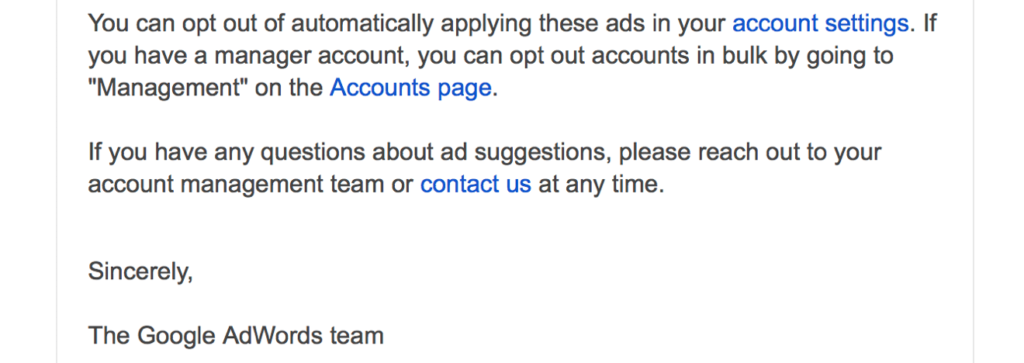
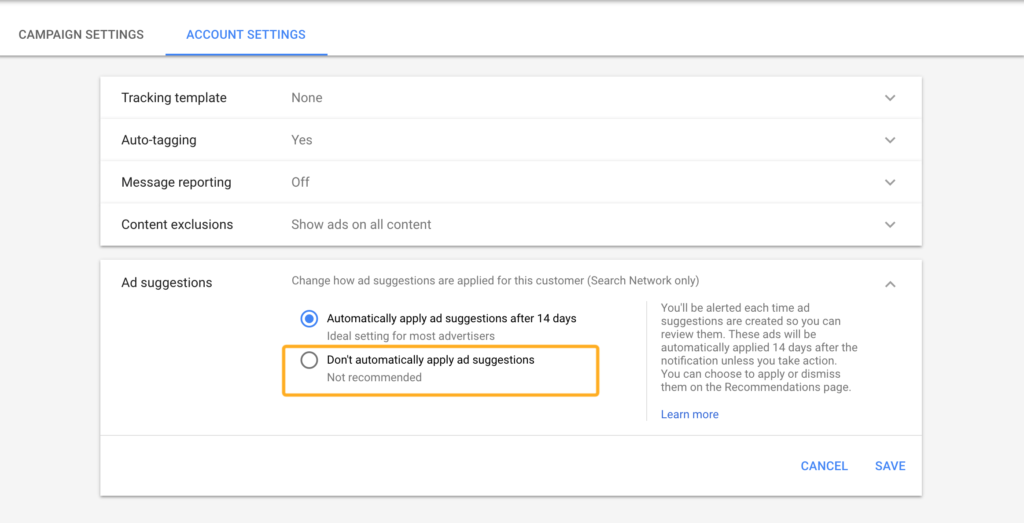
If you don’t want to use ad suggestions, you can go to your account settings and opt-out.

Or, you can use your My Client Center (MCC) to opt out of ad suggestion for every account you manage, all at once. Keep in mind that bulk opting-out will block these ads from every account connected to your MCC.

As we discussed, opting out of ad suggestions is something you might want to consider if you’re in a regulated industry or you have other restrictions on ad messaging.

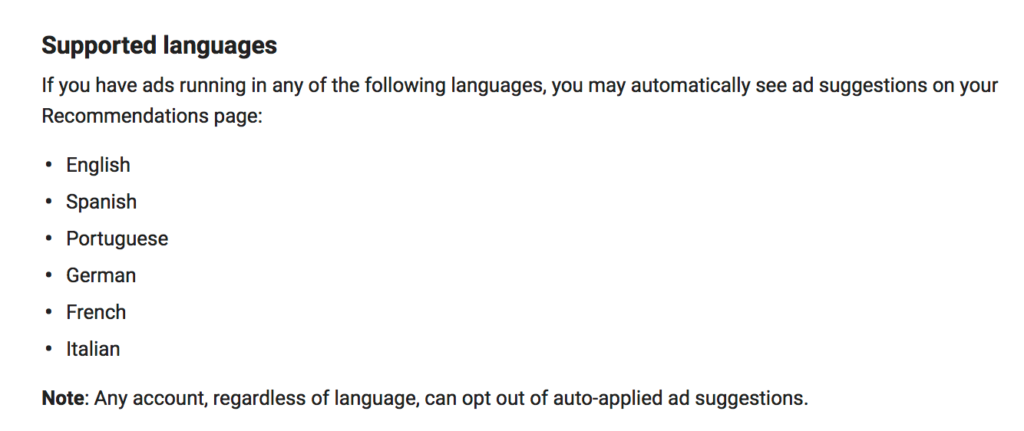
Ad suggestions are not for every language

There some other key details involved in the rollout of this new feature. Ad suggestions won’t be for every language. They will be restricted to English and some of the more common European languages.

A lot of the information Google has released about automatic ads so far is pretty vague. I would expect we’ll see more details after this feature has had some time to run.

To learn more about ad suggestions you can refer to this article on the Google website – Manage ad suggestions.

What’s my reaction?

You’re probably wondering what my reaction is to these new automatic ads.

Well, out of pure curiosity, I’m going to let Google’s auto-generated ads show up in my account. And I’m going to check out how they work.

I’ll reserve my final judgment on ad suggestions until I see how they function. As of today, I don’t think this feature is bad news.

But, what about the advertising community as a whole? What impact will ad suggestions have on other advertisers?

I think the impact of automatic ads largely depends on how you run your account.

How will ad suggestion affect the average advertiser?

The average advertiser doesn’t check their account very often. They usually don’t turn on tests or use ad rotation. Their campaigns are typically on autopilot. And they don’t build out much structure in their campaigns or ad groups.

So, ad suggestions might improve results for the average advertiser.

If you don’t optimize your ads, Google will!

It sounds as if ad suggestions will allow Google to control ad testing and optimization on low activity accounts. Basically, Google’s willing to take on the work the average advertiser isn’t doing now.

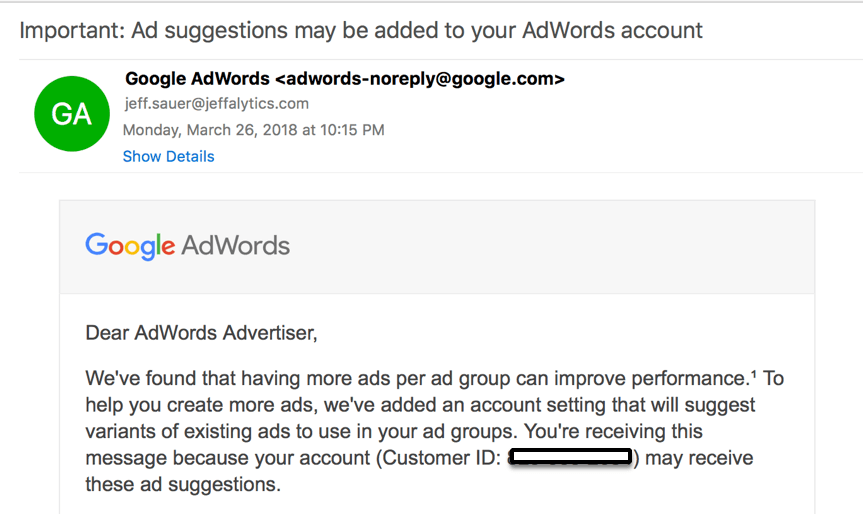
Google even says right in their message “We’ve found that having more ads per ad group can improve performance.”

And you can be confident that ad suggestions are intended to drive more clicks. Think about how profitable it would be for Google to increase click volumes across the board.

Automatic ads will potentially help the average advertiser, and increase Google’s profits.

Ad suggestions and your AdWords budget

What’s the downside to using auto-generated ads? Well, I’m not sure I know that answer yet.

But if you’re not monitoring your account, these ad suggestions could significantly impact your budget.  If you’re not spending your max budget, ads targeted at generating more clicks are likely to increase your ad spend.

Although Google’s ads won’t push you over budget, they could run your budget out faster each month.  Google can go 200% over your daily budget, but they can’t exceed your monthly budget.  So if ad suggestions increase your CTR, you could burn through your budget faster than you do now.

Also, ads that are optimized for clicks, not conversions. This creates the potential for making your budget less efficient.

Keep in mind, if you are monitoring your account, you can turn these ads off if you don’t like how they spend your budget.

**To learn more about how to optimize your AdWords budget, you can check out these two resources:

  • How to Calculate Your Google AdWords Budget
  • AdWords Limited by Budget – Not anymore! Learn the right way to optimize your AdWords budget

Advanced Advertisers

Advanced advertisers should be in their account every day, or at least once a week. So, these advertisers should be reviewing their ad suggestions well before they go live.

If you’re diligent with your account management, you can test how automatic ads work. You can track how automatic ads affect your budget. You can turn off the ads that are inefficient. And you can keep the ad suggestions that deliver an improved cost-per-conversion.

How do you know if you’re an advanced advertiser?

Download our 10-minute Adwords Account Audit checklist and find out if you’re an advanced Adwords advertiser!

The bottom line is this…

If you’re actively managing your account and if you’re following the PPC Mastery Course methodology, then ad suggestions shouldn’t be a big deal.

These auto-generated ads are just another feature you can turn on or off.  Like any other feature, you need to monitor the results to understand their impact.

If you are not managing your account? Then you might see more clicks coming to your website, which is not necessarily a bad thing.

These ad suggestions are only a negative if it means you lose out on conversions due to increased CTR on non-converting ads. This shouldn’t affect most advertisers.

Let’s briefly recap what we know about ad suggestions so far:

  • Ad suggestions may start appearing in your account after April 29th, 2018.
  • They will show up in the recommendations area of your account.
  • You can manually choose to run your ad suggestions.
  • You can also dismiss any of Google’s automatic ads.
  • If you take don’t take any action with your ad suggestions, after 14 days, they will go into rotation in your ad groups.
  • You can opt-out of ad suggestions all together in your account settings.
  • You can bulk opt-out of automatic ads in all your accounts via your MCC.
  • Ad suggestions may increase your ad spend if you’re not spending your max budget.
  • The best practice for using ad suggestions is to monitor your account regularly.
  • If you elect to enable any of your ad suggestions, make sure to track how the impact your cost-per-conversion.

Part #2 – What’s the outcome?

In theory, Google’s new ad suggestions are not a big deal. And your max budgets won’t be affected by these ads. But in reality, we don’t know what’s going to happen yet.

There’s a lot to be learned.

So, I want to hear from you. Do you want to know more about Google’s auto-generated ads?

If you want us to do a follow-up tutorial after ad suggestions go live, then leave a comment below.

If there are enough comments will turn this into a two-part series.

Filed Under: PPC News

Google Marketing Platform and Google Ads – 3 Major Innovations You Need to Know About

October 11, 2018 by Jeff Sauer

Google held their Marketing Live Innovations Keynote presentation for 2018 last week, and Wow! They dropped some bombshell announcements on the marketing world. So what’s up with Google Ads and Google Marketing Platform? That’s what we’ll talk about in this post.

In case (like me), you missed the live stream of this presentation, you might be trying to get caught up on all the big announcements. So, I want to share how you can get yourself up to date on the changes that are coming to our favorite Google marketing platforms. And, I also want to discuss the three product advancements that really caught my attention. One of these new features is so unexpected that it has my mind completely blown.

In this video and post, we’ll take a look at the big changes that are coming our way. We’ll discuss which Google features you can take advantage of immediately, and what to keep your eye on over the next few months.

Let’s dive into the 2018 marketing announcements from Google

Full Disclosure: I missed the 90-minute Live keynote presentation held by Google last week. I had planned to watch it, but I was presenting at a marketing conference in Greece, and then the World Cup was on, and so… Well, I figured I would get caught up this week and give you a summary of all the new changes Google’s rolling out. As it turns out, summarizing all the innovations Google’s launching is not an easy task.

For one thing, Google announced more advancements and new features than I expected. However, many of the innovations they introduced didn’t include enough technical details for me to form an complete review. As these product upgrades launch, we should get more access to information about the technical details. But for now, we’ll just have to trust what Google is telling us.

That’s said, let’s delve into the updates that could have the most significant impact on our marketing.

Google’s rebranding almost everything

There are two major rebrands happening at Google.

Google Adwords now = Google Ads

Rebrands happen all the time, especially when you have a vast array of products like Google does. Renaming AdWords to Google Ads might not seem like a big deal (unless it’s going to torpedo the SEO value of half your blog posts. Thanks Google!) But this name change is more than window dressing.

The rebranding of the AdWords platform includes new features like expanded responsive search ads, and easy-to-use product feeds for shopping ads. There’s a lot of technical details involved in this rebranding that we will be learning about in the coming months.

What do you need to know right now about the rebranding?

Google AdWords is now Google Ads. This rebranding will include a new logo, and some new advertising features we are going to have to evaluate as we get more data. (We’ll take more about some of these features a little later in this post).

Google Analytics 360 and DoubleClick now = Google Marketing platform

The 360 brand is Google’s premium version of their analytics and reporting products. Most of us use the free versions of Google Analytics, Data Studio and Optimize. But many marketing agencies and businesses opt to upgrade to the enhanced features available in the 360 product line.

From now on the 360 products will be found on the Google Marketing platform. Google’s DoubleClick tools will also move to the Google Marketing platform. And as part of the rebranding, Google will drop the DoubleClick name. DoubleClick Bid Manager and Campaign Manager will become Display and Video 360. Double Click Search is now Search 360.

To this date, I haven’t seen any news about whether or not the rebranding will have an impact on our beloved, free Google Analytics platform. But you can be sure that Jeffalytics will be following any developments on this front closely. (I promise you that no matter what happens, I won’t change the name of this site to jeffarketingplatform.com)

Getting caught up on Google’s 2018 innovation announcements

There are a few different ways you can get caught up on all the big news from last week’s Marketing Innovation Keynote presentation.

If you have 90 minutes to spare, you can watch the full recording of the presentation on Google’s Youtube channel.

But, if you’re looking for a condensed, abridged version of the presentation, you can check out the below 10 -minute video put together by Measure School. This video is a great way to get the quick and dirty analysis of the highlights from the presentation.

If you’d prefer to read all about Google’s latest innovations, the Google Ads blog provides a full run-down of the changes to Google AdWords.

You can also find a chronological news feed of all of Google updates to AdWords (now Google Ads) on the Google Ads Announcement Channel.

What are the most exciting Google innovations for 2018?

It’s time to get down to business and discuss the most exciting marketing advancements Google announced.

1) Cross-device reporting in Google Analytics – Google Signals

Cross-device reporting is now built into Google Analytics!

This is BIG NEWS!

Here’s how I understand that Cross-device tracking is going to work in Google Analytics. Google will allow you to track activity from users that are logged into their Google accounts across different devices.

You’ll be able to anonymously track aggregated data about your visitors on any device they use with their Google profile. You’ll get access to data about your visitors’ behavior, their internet activity, and even their YouTube search history!

You can enable cross-device reporting in a new feature called Google Signals. This feature is already available in Google Analytics. So, like a good analytics blogger, I’ve forged ahead and turned on Google Signals in my account.

How to set up Google Signals

The setup process for Google Signals is pretty simple.

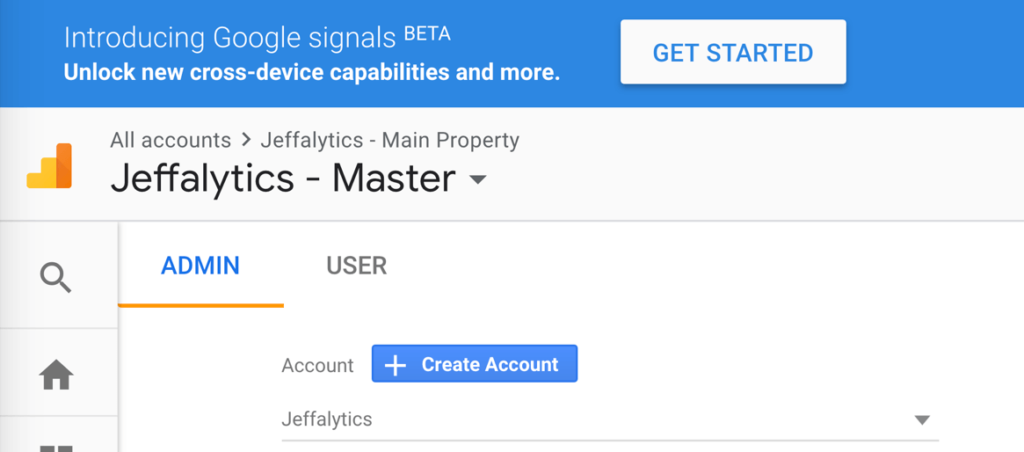
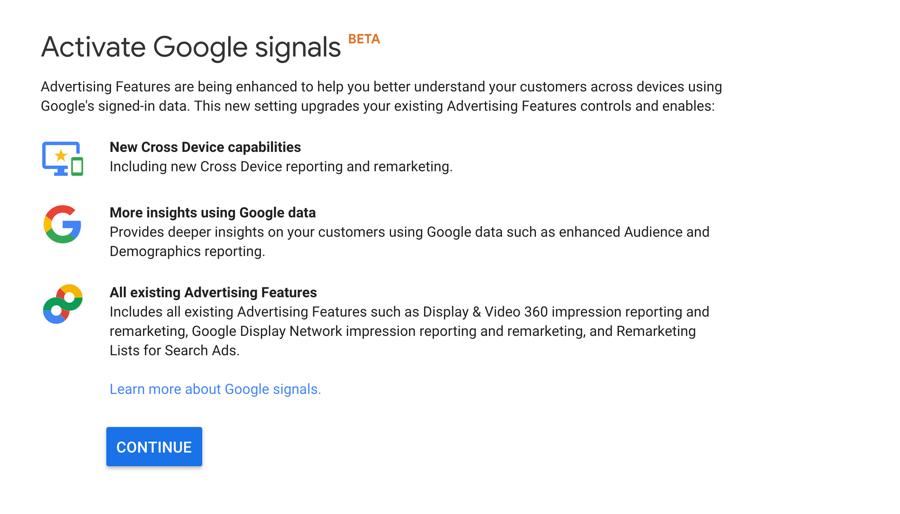
If you haven’t set this feature up yet, you should see a Google Signals Beta banner across the top of your Analytics account.

The “Get Started” button on this banner will take you right to the Signals settings. Before you activate Signals, Google will provide you with some more information about what’s included in this new feature.

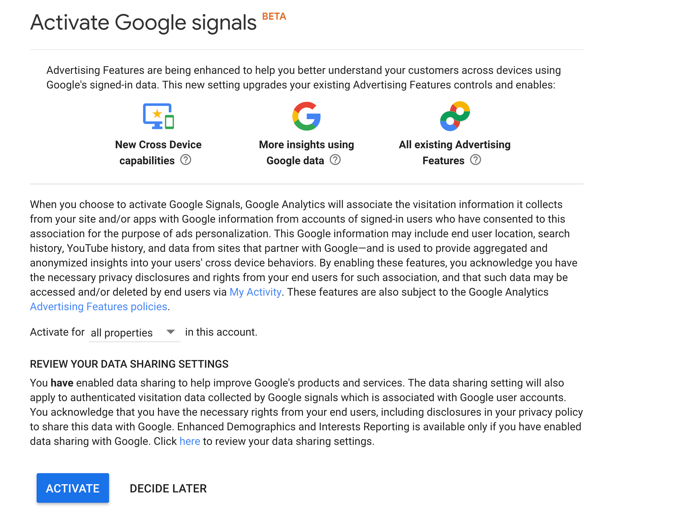
You can continue through this information to the activation menu. In the activation menu, you can choose where in your Analytics account you want to enable Google Signals.

Think before you activate Google signals

Of course, I wouldn’t take activating cross-device reporting lightly. You need to understand how this kind of tracking impacts your privacy policy, and potentially your user consent policy.

But if you are ready to take the next step, you can click the activate button, and you’ll be up and running with cross-device reporting. It’s that easy to set up!

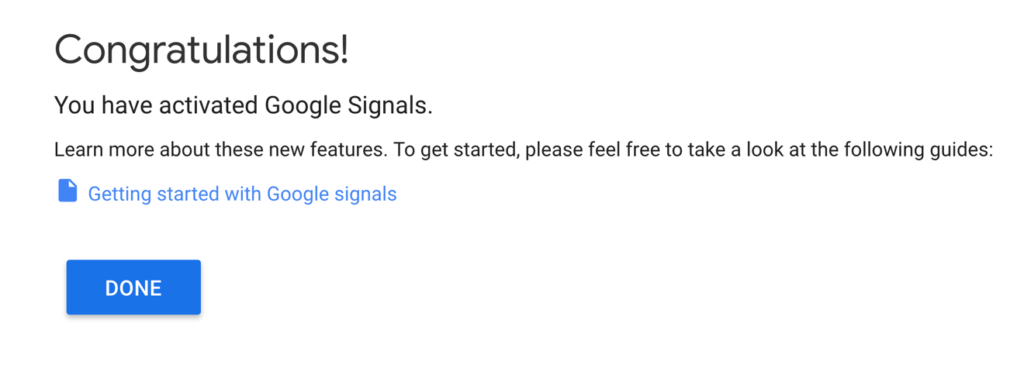
Once you complete the Signals set-up process, Google will greet you with a user satisfaction survey. They’ll also provide you with a link to their documentation about how the Signals tracking system works.

How will Google Signals be impacted by GDPR?

It’s important to understand that Google Signals is an advanced tracking feature. This type of tracking is collecting information based on your users’ personal data. So if you’re going to use Google Signals, you’ll want to make sure you’re obtaining cookie consent from your users in GDPR affected countries.

You may already have a consent notification in place. But if you’re still looking for guidance or clarification on Cookie Consent, you can check out this video and post we published about Google Analytics tracking and user consent.

I am incredibly excited about Google Signals. Before I wrap up this post, we’re going to discuss why this feature is so significant. And I’ll also offer you an opportunity to take part in my research into the capabilities of Google Signals.

But I don’t want wind myself up into another analytics rant just yet. So let’s talk about the other innovations Google announced that immediately stand out.

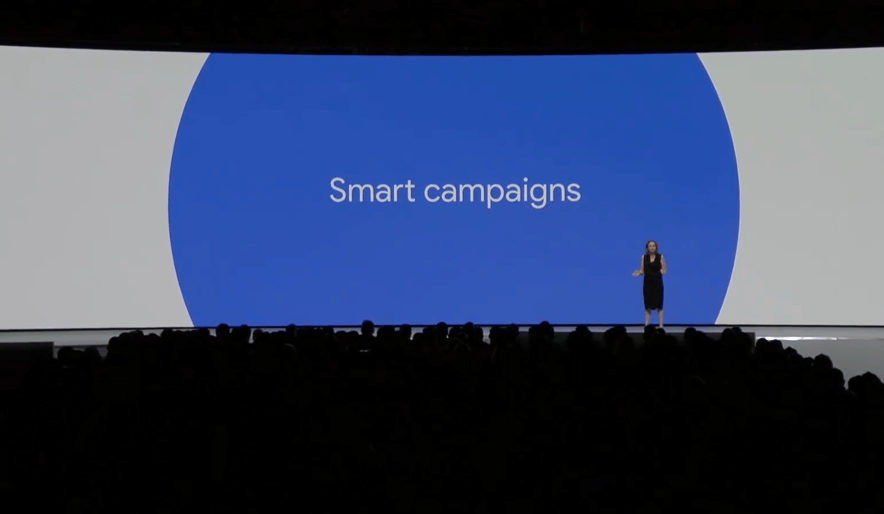
2) Smart Campaigns

Smart Campaigns are Google’s machine learning infused solution to making PPC advertising simple.

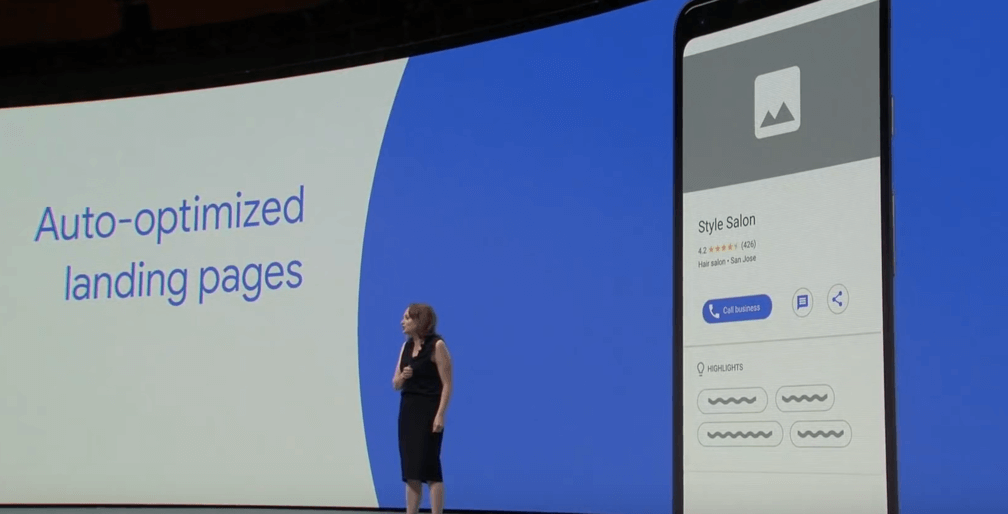
This feature will allow you to put your advertising on autopilot. Smart Campaigns will take over the work of optimizing your ads using machine learning and Smart Bidding technology. You can even use Smart Campaigns to generate Google optimized landing pages.

Essentially, Smart Campaigns are designed to allow more people to advertise on Google, without doing all the hard work.

This innovation could be a good thing. But only If you trust Google to look out for your best interest.

Remember, Google’s objectives are not always the same as yours

Google’s goal is to make money from advertising. Smart Campaigns reduce the friction for spending money with Google Ads. They remove the barrier of PPC knowledge and skill from advertising.

But, Smart Campaigns don’t change the game. You still need to:

  • Know why you’re advertising
  • Know how to manage your account
  • Know how to set up conversion tracking
  • And understand how to calculate the results you need to earn a profit

If you run ads without knowing your objective or how to track results, Google will optimize your campaigns for metrics that may not lead to a positive return on investment. With the wrong KPIs or a lack of conversion tracking, Google will drive clicks to your landing pages, but these click-throughs are not likely to result in enough conversions for you turn a profit.

A public service announcement about Smart Campaigns

Don’t jump into using Smart Campaigns with the assumption Google will just bring you more sales. It’s never that easy. If you use this system without managing it and without a strategy, Google will take your money, and give you nothing but clicks in return.

If you want to automate PPC and be successful, then you need to learn the strategies behind PPC advertising. I have created a comprehensive course on Google advertising – PPC Course. This course will help you understand the strategy you need to know to be successful with PPC. And the knowledge in this course will save you money so fast that it will pay for itself many times over.

Don’t get gamed by Google. Learn PPC strategy so that you know how to hold Google accountable and beat them at their own game.

Let’s get to the other innovations that caught my immediate attention.

3) Integration Center and Google Measurement Partners

The final announcements that caught my interest were Integration center and Measurement Partners.

Integration Center

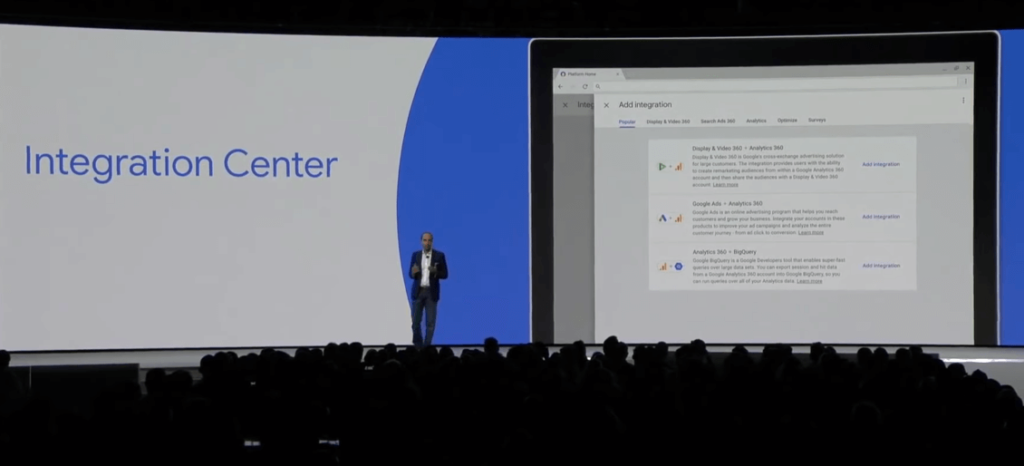
Integration Center is going to allow you to integrate data between multiple Google products all in one place. The primary purpose of the Integration Center will be to transfer marketing audiences from one system to another.

This tool has the potential to be a huge time saver, but it’s not for everyone. It looks like this tool will only be available on the paid Google Marketing Platform.

Google Measurement Partners

I love it anytime Google creates a way for third-party platforms to access the Google systems. And third-party integration seems to be what the Measurement Partners will offer. I don’t know all the details about this product yet but it looks like Measurement Partners will allow you to connect some of the biggest enterprise reporting platforms to your Google Marketing tools.

If you’re excited to learn more about Integration Center or Measurement Partners, then leave a comment below. If there’s enough interest, I’ll evaluate both these new products, and share my findings with you.

Why Google Signals may be the blockbuster of all the 2018 innovations

As promised, before we close this post out, I’ll share my ranting exuberance about Google Signals. This feature could be one of the biggest innovations in web analytics in recent memory. Anyone who has ever set up cross-device tracking understands the degree of difficulty in implementing this technique.

Now Google’s going to do this for us. Not only that, but Google has more access to cross-device data than anyone else. With Google Signals, you can set up cross-device tracking in just three button clicks. This innovation could drastically increase the accuracy of our reporting.

In the past, I went on the record to say that Google would never give us access to cross-device data from logged-in Google users. Maybe pigs are flying, or you know where has finally frozen over? Or maybe Google opened the data firehose in reaction to GDPR?

I am not yet sure what led to this major development. But cross-device reporting in Google Analytics is available and running in my account as you read this post.

Leave a comment if you want to learn more about Google Signals

So here’s my offer to you; Do you want me to do a full-on deep-dive into Google Signals?

Together, we could be the first ones to take on this challenge. I can dig through my Google Signals data and tell you what I see. We could compare signals to traditional cross-device tracking methods. We can find out if this new feature lives up to the hype. And we can evaluate if it’s worth adjusting your privacy policy, or changing your approach to GDPR to get access to this data.

But first, I need to know if you’re interested in taking this journey together. If you are, then leave a comment on this post. If I get 50 comments, it’s game on! I’ll test this tool out, dig into its functionality and report all my finding back to you. So, If you want to me to do a Deep Dive into Google Signals, let me know in the comments below.

Filed Under: PPC News

Google Keyword Planner Guide 2018: Tips, Hacks and Strategies for the GKP

October 11, 2018 by Jeff Sauer

Google’s rebrand of AdWords to Google Ads is complete. The makeover of the Ads platform brought us a shiny new version of the Google Keyword Planner.

Big G dubbed the new Keyword Planner a “simpler, better” version of its former self.

Of course, the skeptic in me immediately asked “When is simpler, better?” and I decided to do an in-depth overview of the shiny new 2018 Google Keyword Planner upgrade.

When it comes to keyword research, which is the lifeblood of your PPC advertising and SEO campaigns, simpler technology rarely delivers better results.

Which begs the question: should you be concerned about the latest Google Keyword Planner update?

With a healthy dose of skepticism about Google’s “simpler, better” conjecture, the Jeffalytics team recently dissected the new Google Keyword Planner (GKP). In this guide, we’ll review how to use the new GKP, as well as where to find all the essential settings in the new interface.

Follow along with our GKP Deep Dive as we look at:

  • How to use Google Keyword Planner for free
  • How the status of your Google Ads account can affect your access to keyword data
  • A hack you can use to get more keyword data in your GKP results
  • How to use the settings and filters in the GKP to focus your keyword list
  • Some under the radar changes in the newest version of the Keyword Planner 
  • How to use the Keyword Planner’s data to forecast ROI, instead of return on ad spend
  • And how to use the GKP’s forecasting tool to target your advertising strategy

Getting started with the Google Keyword Planner

How to use Google Keyword Planner for free

You have to have a Google ads account to use the Keyword Planner. However, that doesn’t mean you have to be running paid ads to get access to this tool.

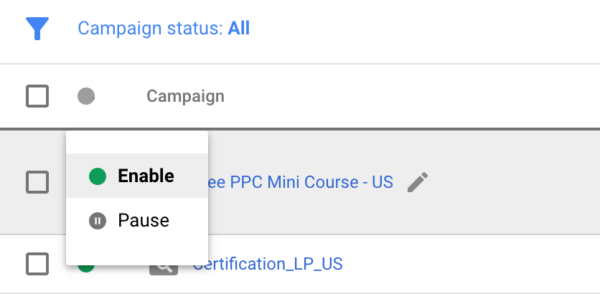
You can set up an Ads account and pause your first ad campaign (which Google forces you to create in your brand new account). A paused campaign won’t appear in live search results or cost you any money. Just make sure to turn it off right away.

Even though Google requires you to input your payment details to use their keyword tool, you won’t incur any charges if you never run live ads.

How your advertising status affects your access to keyword data

Once you’ve created a Google Ads account, you’ll be able to use the GKP – but your access to data will be limited in a new account. For the last several years, Google has been scaling back the amount of data they’ll share with advertisers that are inactive. This is the PPC equivalent to Google Analytics users seeing the disappearance of their organic search term data.

Active vs. inactive Ads accounts

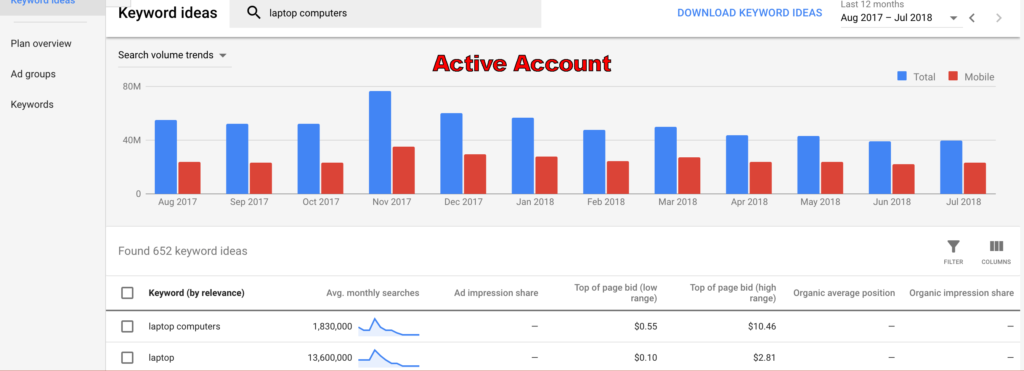
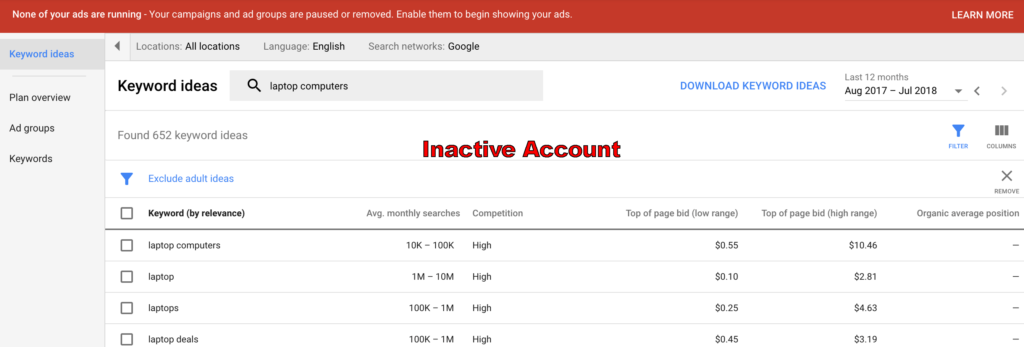
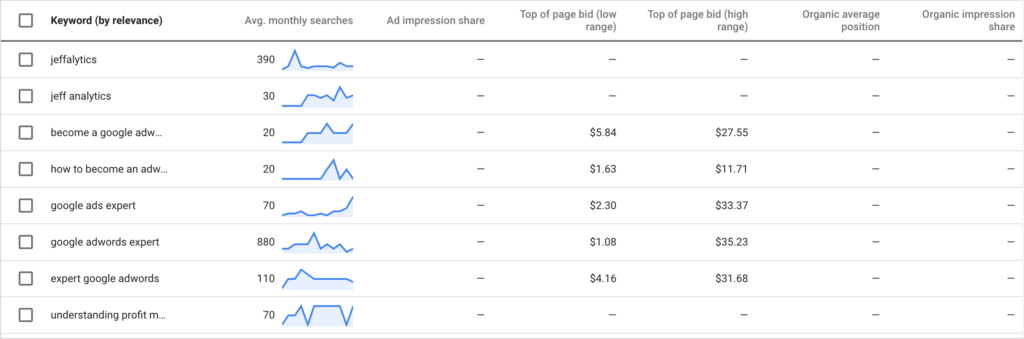
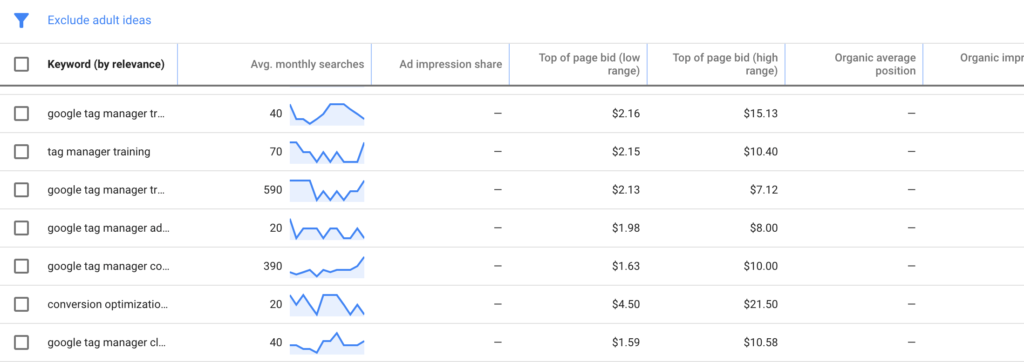
You can see how account status affects the data the Keyword Planner provides in the screenshot below. I’m running a very limited ad campaign in my active account. But as you can see, I have much more data coming into the GKP for my active account vs. the inactive Ads account (shown in the bottom picture).

Active Ads Account

Inactive Ads Account

Can you get your keyword data back?

The Google keyword tool has been a go-to resource for SEO and PPC keyword research junkies for many years. If GKP data remains critical to your keyword research, there are some low-cost, low-risk advertising strategies you can leverage to increase your Ads account activity.

But if you don’t want to put any money into Google’s pockets, there’s also a quick browser extension hack you can use to get real search volume data back in your GKP results. More on these strategies in just a little bit.

First, let’s talk about how to start generating keyword ideas.

Quick keyword ideas

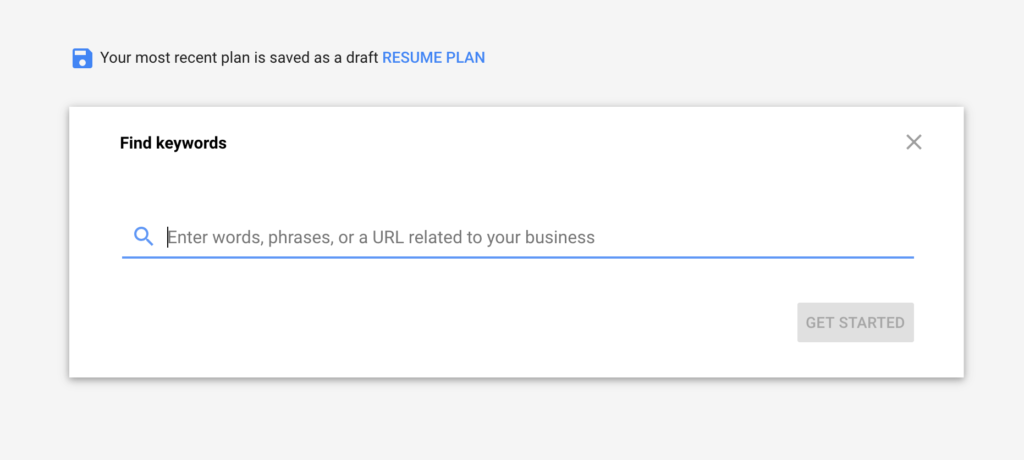
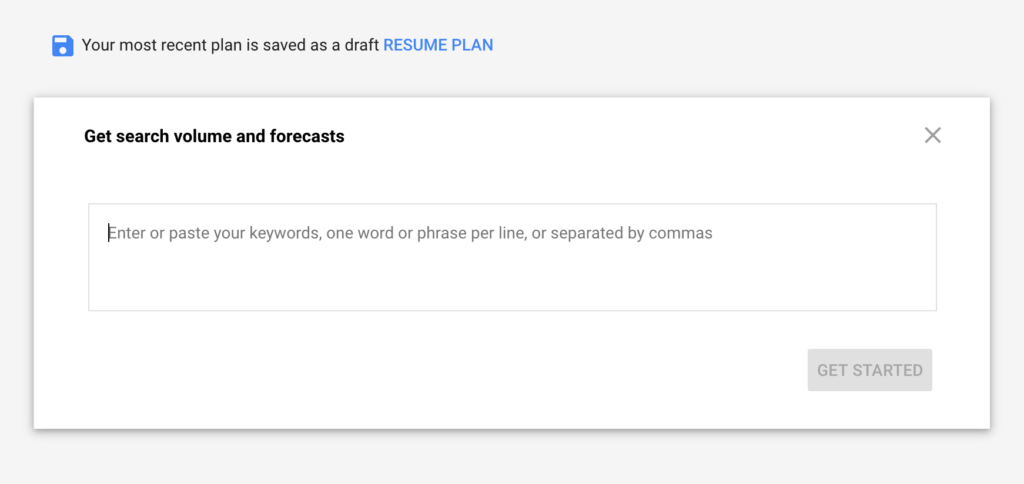
The new GKP has utterly simplified getting started with keyword research. In the latest version of the Google keyword tool, you have one search box for your seed keywords or URL. Unlike the old keyword tool, you can’t adjust any of your filtering options until after Google Keyword Planner performs its initial search.

Why you should scan your website (and your competitors) for keyword ideas

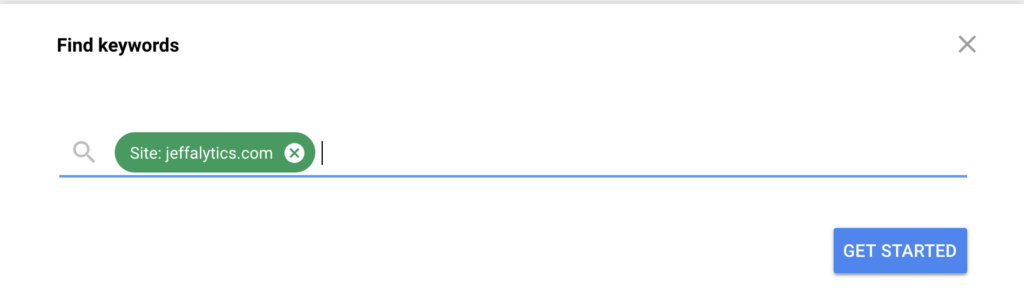
One of the easiest ways to get started with generating keyword ideas is to have GKP scan your site. Just enter your URL, and the tool will create a list of ideas based on the content on your website.

Scanning URLs in the GKP can be helpful for several reasons.

1. Branded Keyword Data

Scanning your website allows you to see search volumes related to your branded keywords.

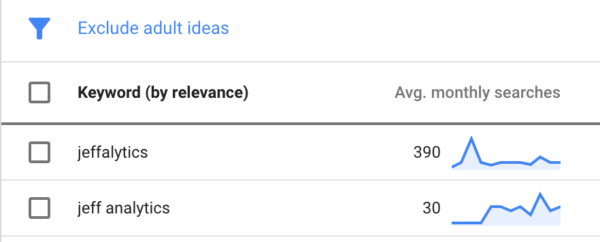
For example, the GKP is showing 390 monthly searches for the name of my website – Jeffalytics. Crazy to think that there are 390 searches a month for my brand!

Branded keywords strategy tip

If you want to increase your access to Google keyword data, running ads on your branded keywords is a simple way to build up your advertising history. Branded keywords are usually inexpensive and they produce excellent results. To learn more about this strategy you can read our full guide about advertising on branded keywords. The key takeaway is that running ads on branded keywords is a low-cost strategy that can help give your advertiser account a boost.

2. Organic search performance data

Running a scan of your website with Keyword Planner can also help you gain information about how Google views your current organic SEO efforts. Do their suggested keywords match your SEO targets?

These results tell you what Google thinks your website is all about. Based on the monthly search volumes for the keywords Google identifies, you can find targeting opportunities for both organic and paid search marketing strategies.

3.  Evaluate your competitor’s keywords

Scanning your competitor’s sites with the Keyword Planner can help expand your list of search term ideas. You can also cross-reference the ideas from your site scan with your competitor’s site scan, which can help you understand the competitive search landscape in your market.

Get your Keyword volume back using the Keywords Everywhere hack

We discussed how the Google Keyword Planner limits your access to data if you don’t have any advertising history.

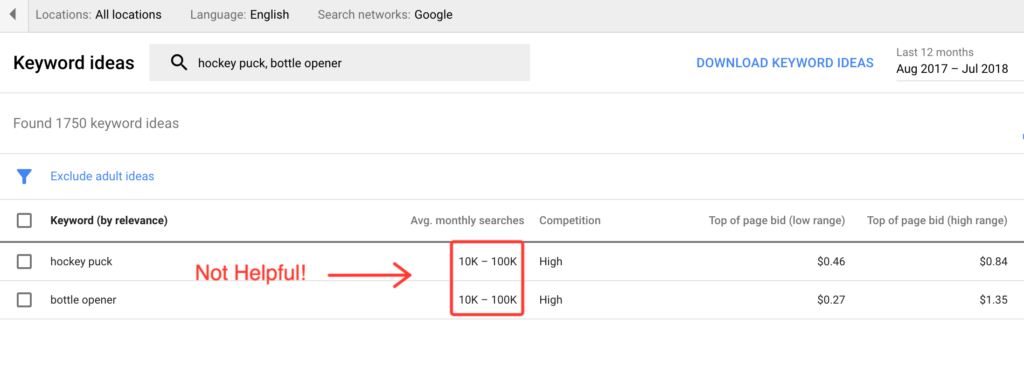
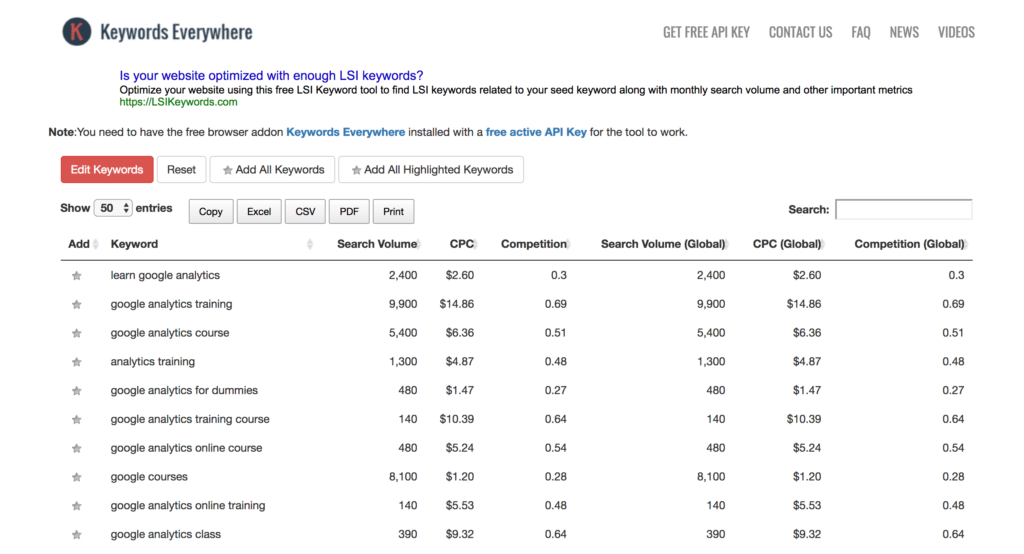
Well, If the GKP is showing you useless search volume ranges instead of specific keyword search estimates, there is a quick fix everyone can use. This workaround involves using a browser extension called Keywords Everywhere.

Here’s how to use this hack

1. Install the Chrome/Firefox browser extension Keywords Everywhere.

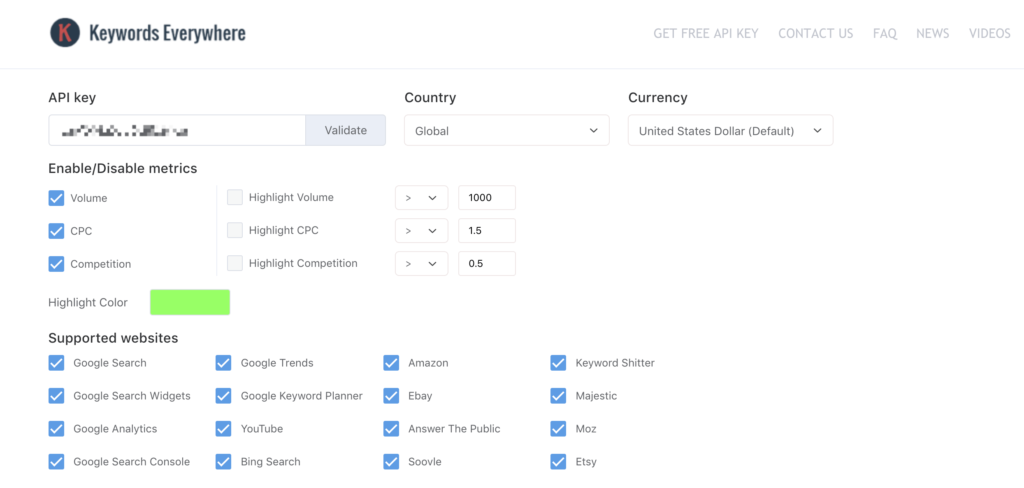
2. Adjust your Keywords Everywhere settings


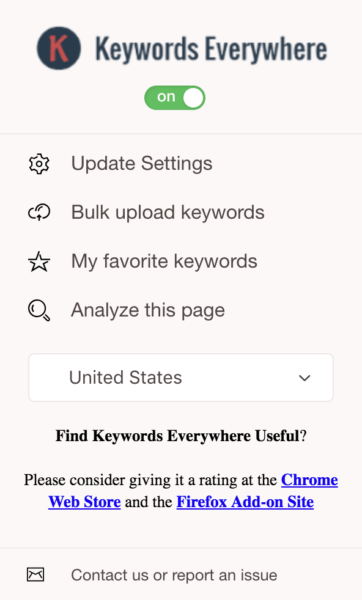
3. Turn on the extension in your bowser.

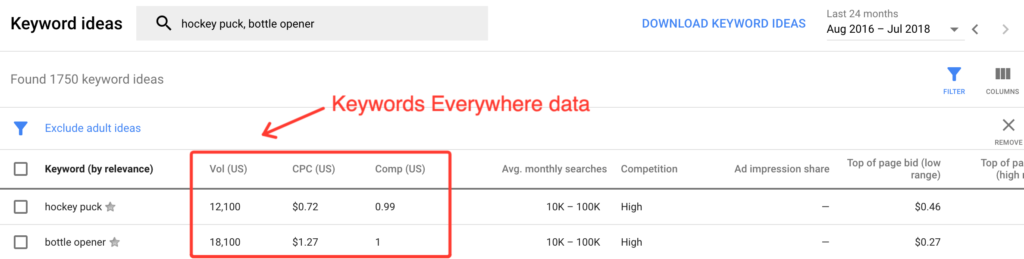
4. Get search volume in your GKP results.

Expanding your rows to see more keyword data

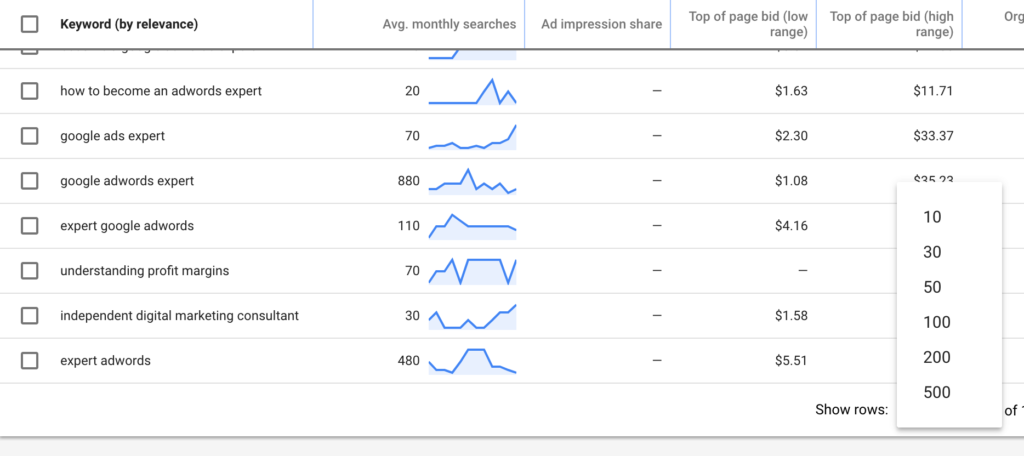
By default, the Keyword Planner only displays ten rows of data. Use the drop-down menu at the bottom of your screen to expand your keyword list to up to 500 rows.

Modifying columns to focus on metrics that matter

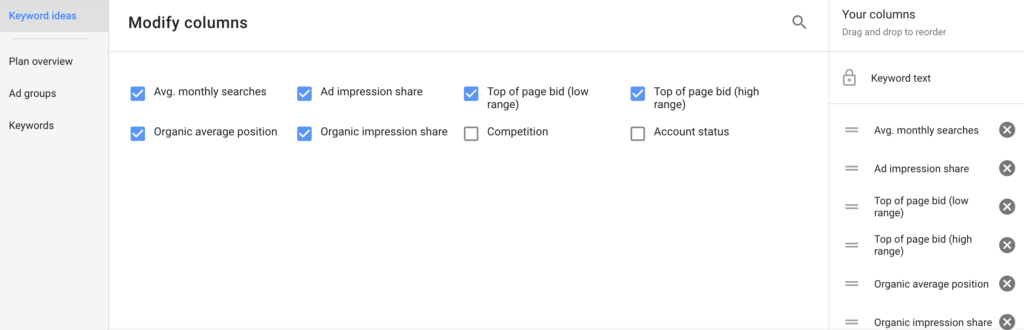
If you’re using the Keywords Everywhere extension with the GKP, your columns can get pretty busy. By clicking on the columns icon, you can remove metrics that are empty, or not useful for your research.

Top of page bids

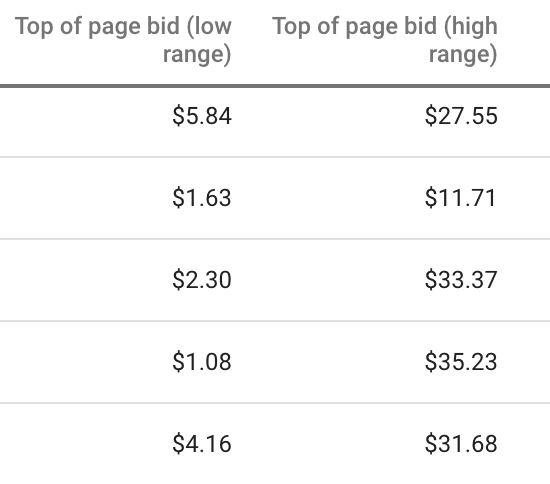
In the latest version of the Google Keyword Planner, the top of page bid metrics have replaced suggested bid data. These new metrics offer some insight into the cost of trying to be the front-runner for your keywords. But, we’ll see better bid estimate data after we put some keywords in our plan and use the forecasting tool.

Ad Impression share and account status

The ad impression share and account status columns are for keywords that you’re already using in your account. These columns will be empty for new keywords that you haven’t advertised on yet.

More keywords in the new Google Keyword Planner?

My team ran multiple iterations of generic keyword searches, testing the old Google Keyword Planner vs. the new GKP. In every test, the latest version of GKP produced a higher volume of keywords.

However, quantity is no substitute for quality when you’re paying for clicks. You can use the keyword filters to help eliminate junk keywords from your list.

Using the Keyword Planner settings to improve your list

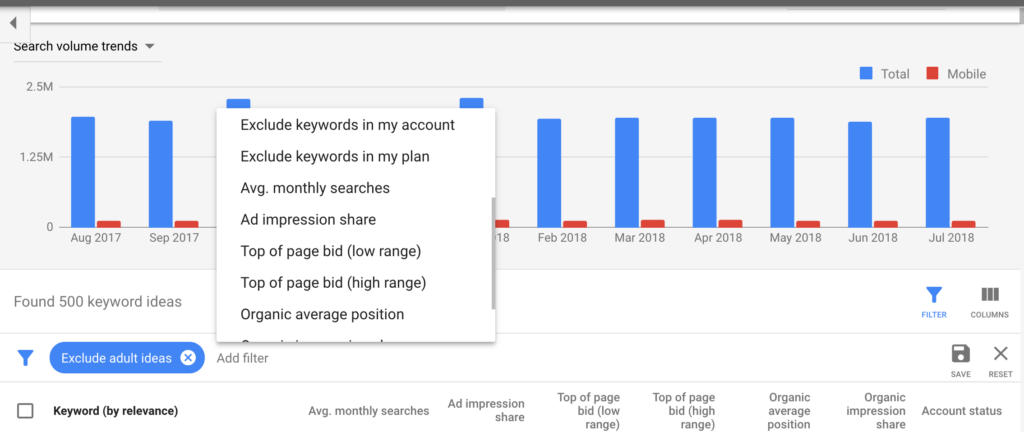
Using the Keyword Planner’s filters is a great way to manipulate your keyword list quickly.

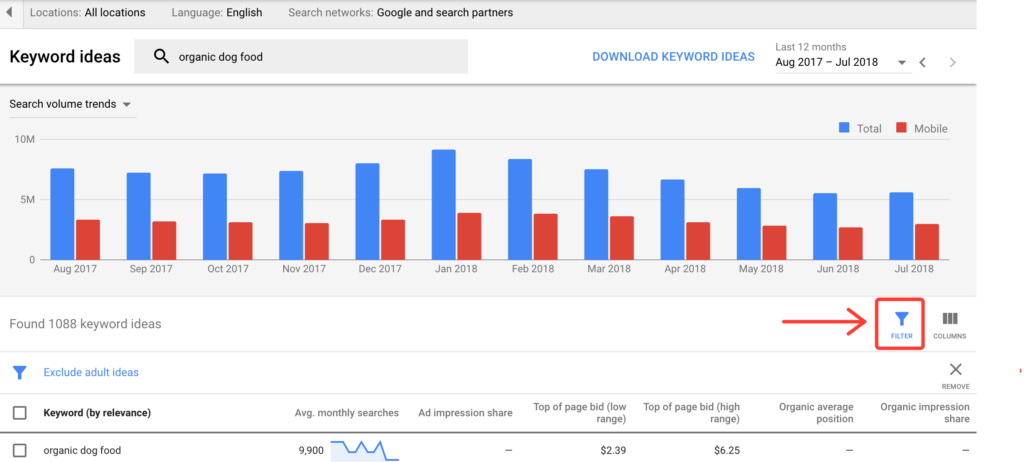
All the filtering options are accessible under the filter icon, located in the top right-hand corner above your columns.

You can use the filters to help isolate your keyword list by topic, focus on keywords by search volume, or help match your keywords to your budget.

Tightening your target with filters

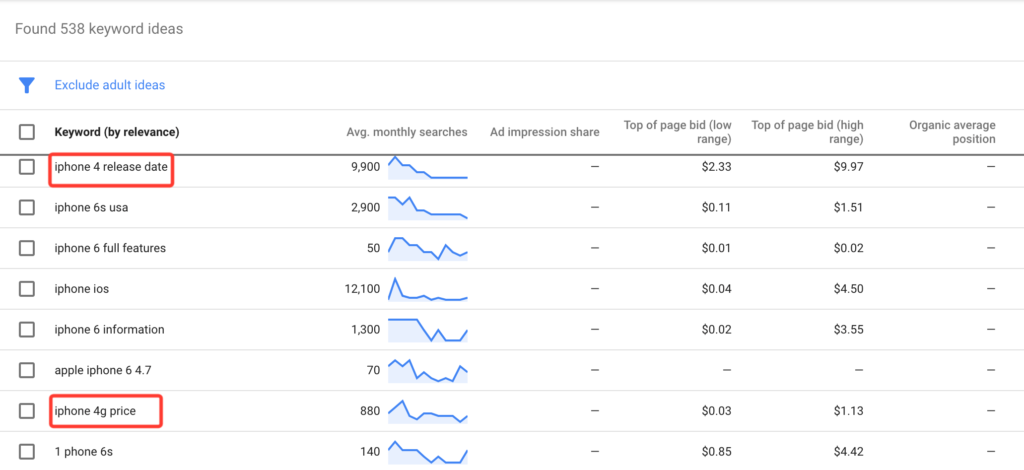
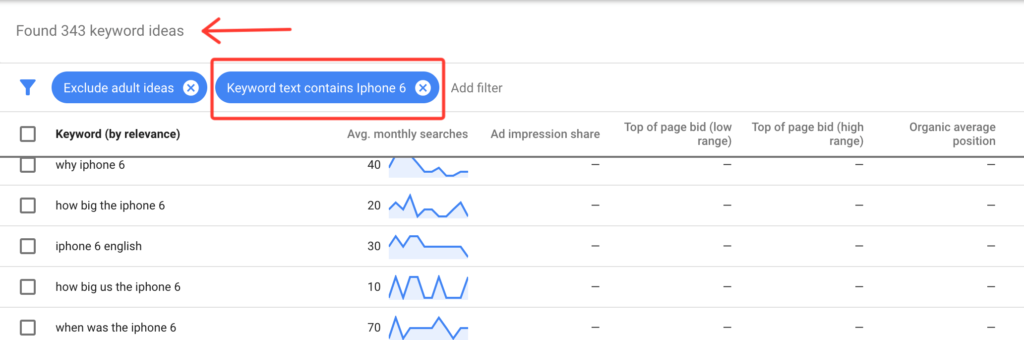
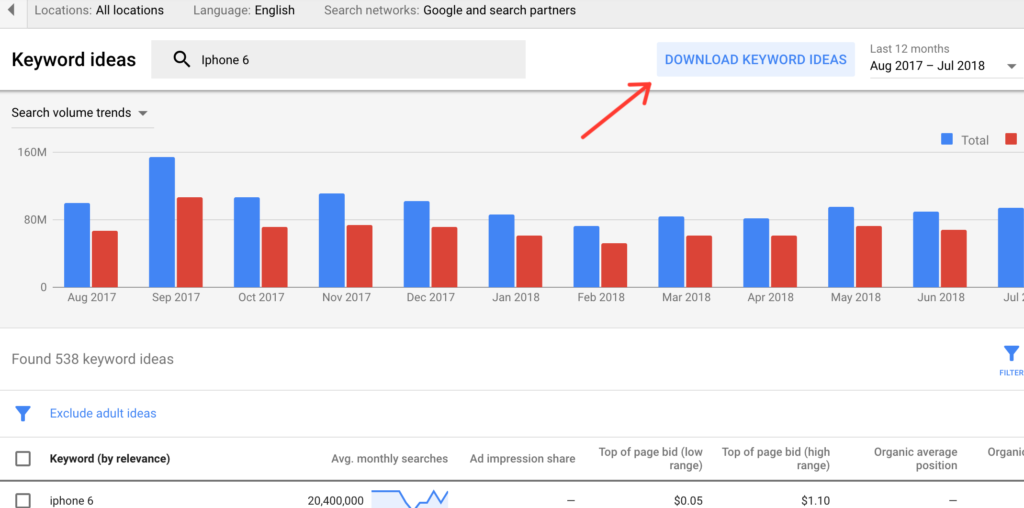
You may have noticed that many of the Google keyword suggestions are not exactly spot-on. Running the seed keyword “iPhone 6” through the GKP returns suggestions like “iPhone 4 release date” and “iPhone 4g price.”

You can quickly eliminate these garbage keywords using the text filter. Filtering my list down to only ideas that contained my seed keyword removed 195 junk suggestions from the list.

Location and language matter

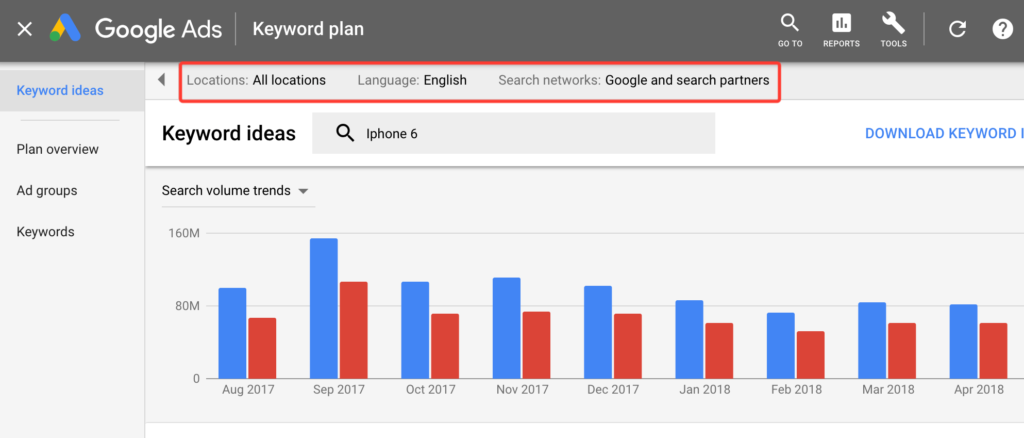
As we discuss inside my PPC Course, your location and language settings will have a significant effect on your advertising budget. So, if you want to do effective PPC related keyword research, make sure to adjust these fields according to your actual advertising preferences.

Your location, language, and network filters are found in the menu under the Google Ads menu bar.

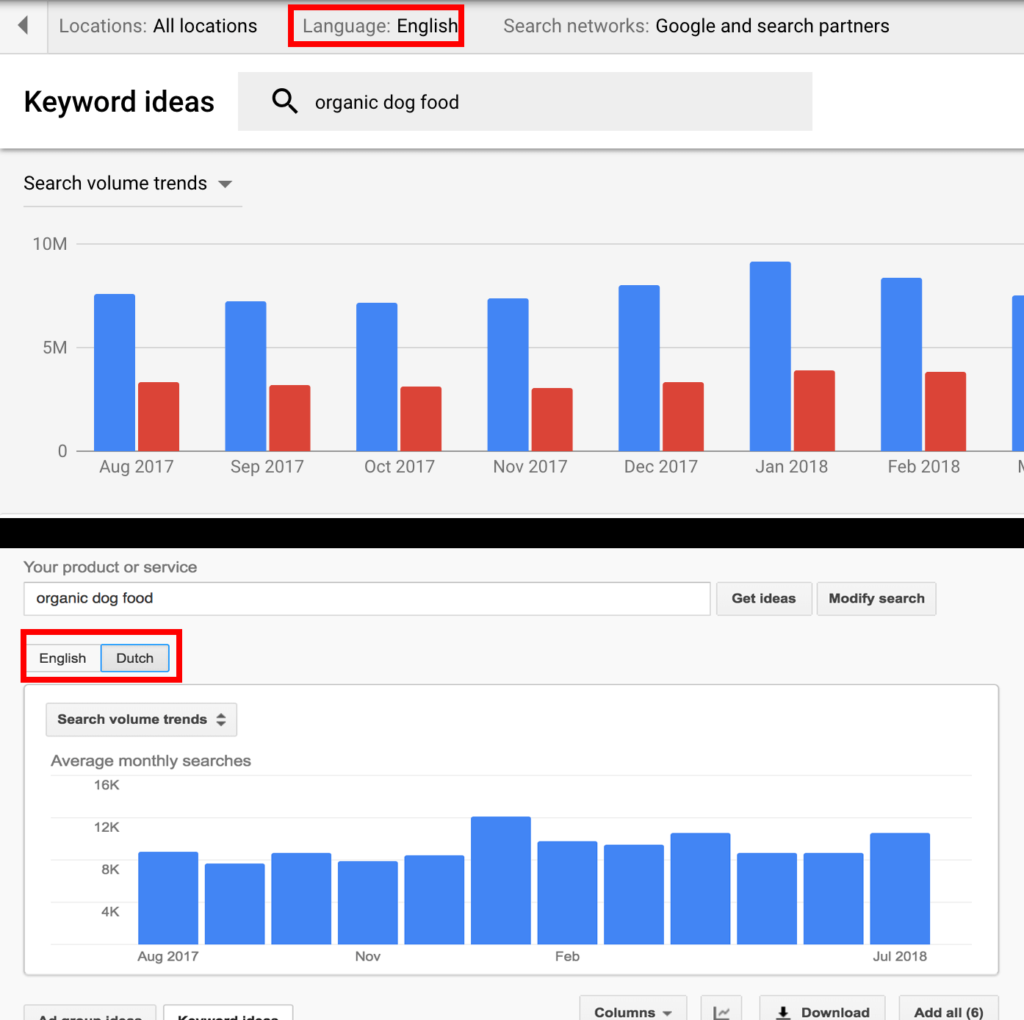
One language at a time

Adjusting the language your targeting is straightforward. In the newest version of Google Keyword Planner, you can’t see search data for more than one language at a time. This change might be Google trying to give us another nudge in the right direction. It’s a best practice to have separate ad campaigns for each language your ads target.

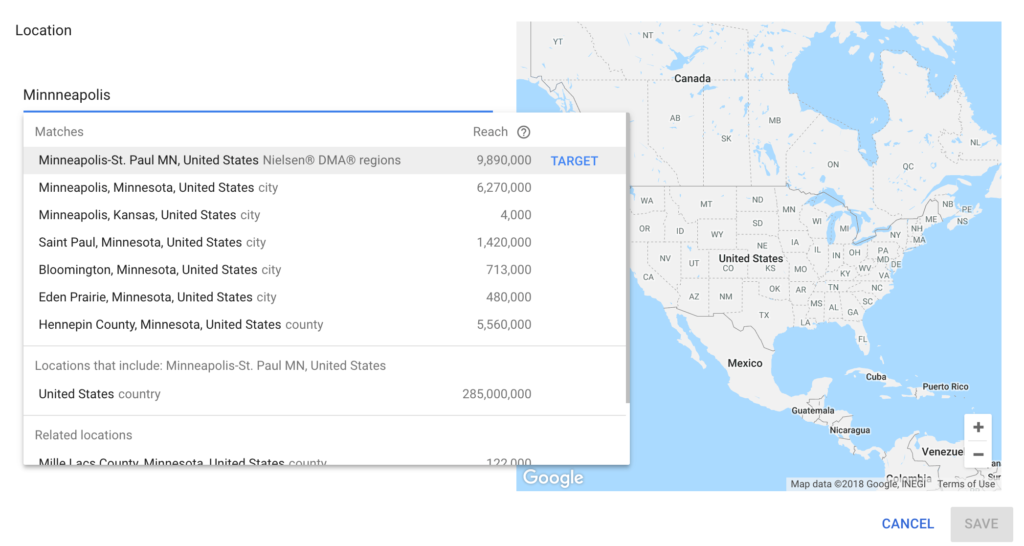
Location settings

Just like the in the old keyword tool, you can drill down to location-specific keywords data. Location targeting is one the most powerful features the GKP offers. Most other keyword tools do not provide city, area code, or DMA focused keyword data.

Taking your keywords with you

You can export your keywords from the Keyword Planner by clicking the “Download Keyword Ideas” button. Exporting your keyword list, and cross-referencing it with other keyword research is the recommended strategy we embrace in PPC Course. You can select specific keywords to export, or export your entire list.

Keywords Everywhere hack #2

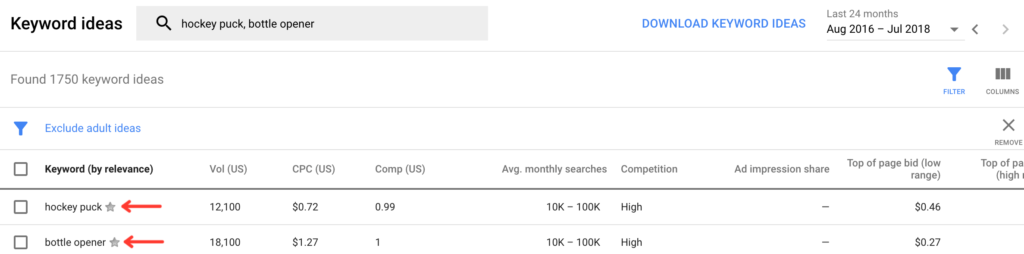
Keywords Everywhere allows you to “favorite” keywords by hitting the star icon next to the keyword. When you favorite a keyword, it gets added to the favorites list in your Keywords Everywhere account. This technique offers you a different, and sometimes slightly cleaner way to organize your most valuable search term data.

You can also export all the keywords suggestions from the GKP list, and import them into your Keywords Everywhere interface.

Where’s the Google drive option?

One notable missing feature in the new GKP is the option to export your keyword list to Google Sheets. It’s a bit odd that Google doesn’t seem to be offering this integration. Hopefully, with enough complaints from the community, Google will add this feature back into Keyword Planner.

Author’s note: It’s possible I’ve overlooked this option among all the other features in the GKP. If you know where the Google drive integration is, please, leave a comment below!

Easy-to-build ad groups

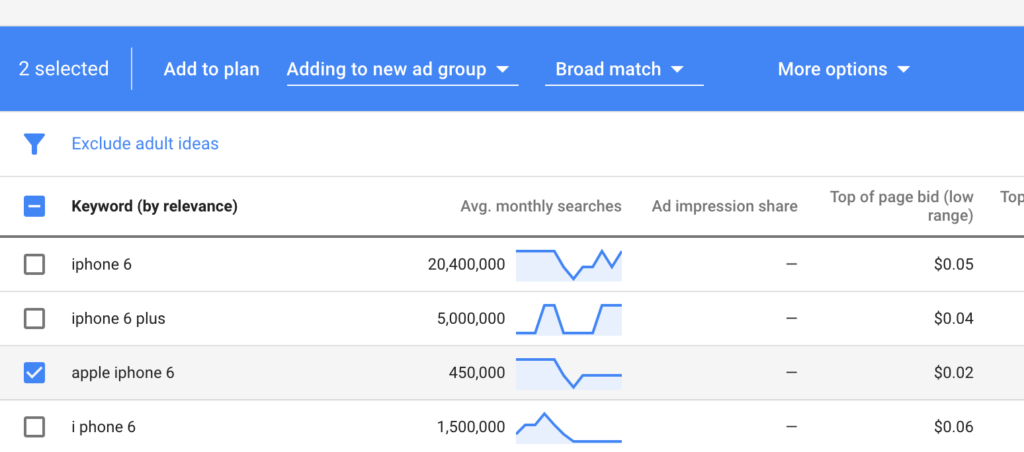
Keyword Planner makes it easy to create new ad groups. To create an ad group, just select the keywords you want to use. Then, a blue ribbon will pop-up at the top of your columns and prompt you to add your keywords to your plan.
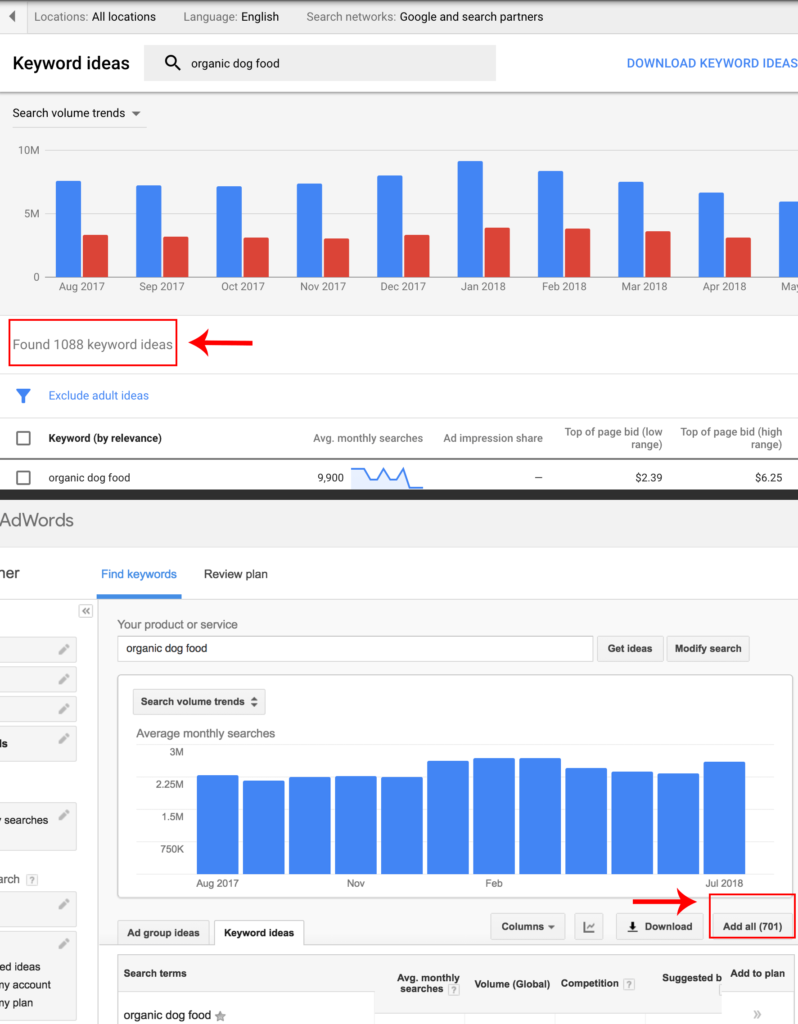
You can choose to create a new ad group for your keywords, or you can add them to a negative keyword list.

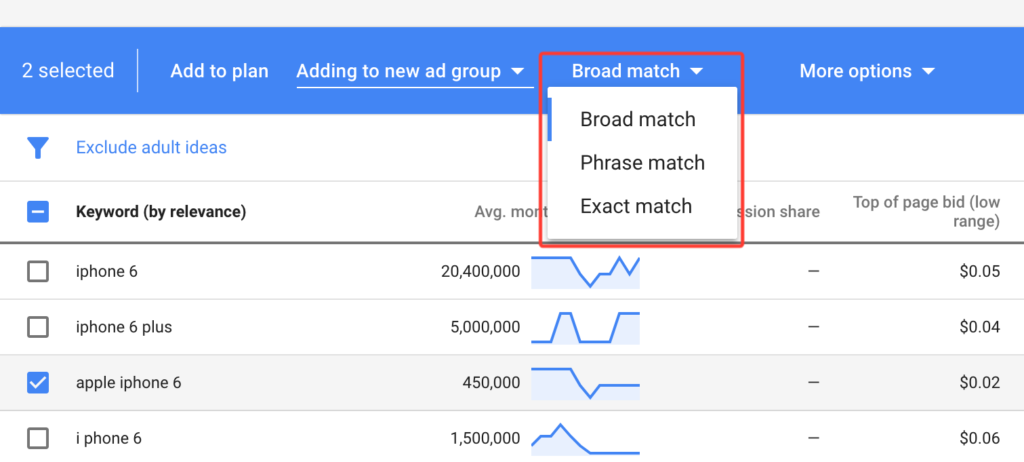
Match type filter

You can also select the match type for your keywords. This option is a bit rigid since it controls the match type for your entire keyword list. But it is useful for forecasting how match types will affect your budget, clicks, and conversions.

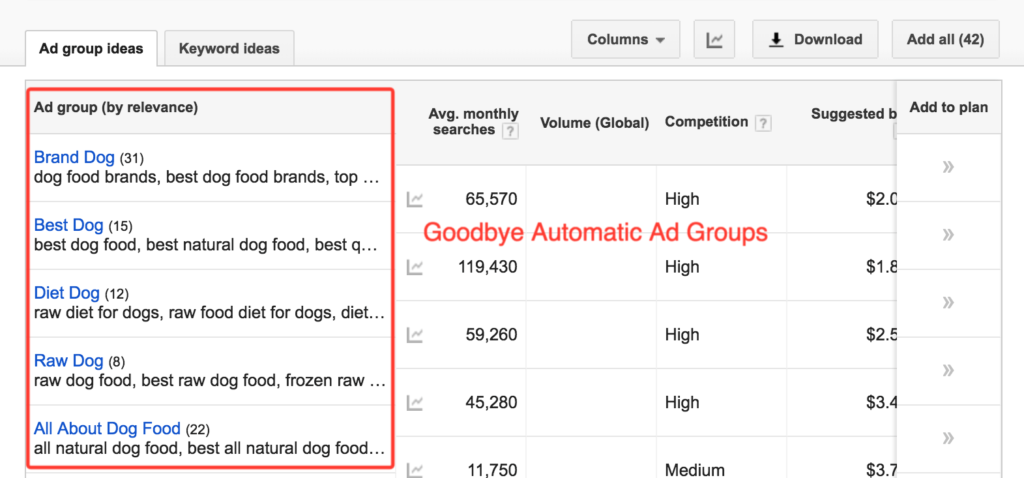
Automatic ad groups are dead?

Another noticeable absence in the latest version GKP is the automatic ad groups. It appears Google has killed that feature in favor of encouraging you to build your own ad groups. This absence is not a significant loss since Google’s automatic ad groups were usually broadly targeted and expensive. However, some of the forecasting data the automatic ad groups produced was useful.

Using the Google Keyword Planner to forecast your PPC future

After you’ve added keywords to your plan, Google will predict your advertising future (kind of) using their forecasting model. You can also go right to the forecasting tools, without searching for keywords, when you enter the Keyword Planner.

The GKP forecasting tool allows you to adjust your max cost-per-click (CPC), location, language, and network settings to see how they affect your performance.

The forecasting tool can be really fun to play with, but there a few things to keep in mind when evaluating your data.

Forecasting focused on conversions

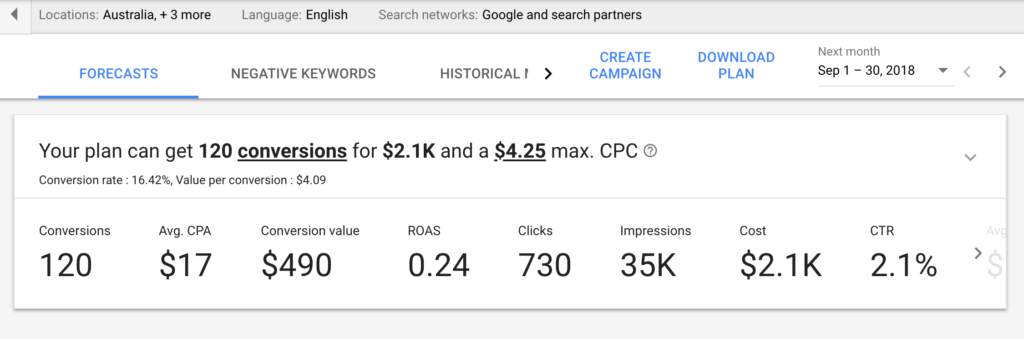
I’ve been critical of Google in the past for hiding our conversion data in the Ads interface. So I was excited to see conversion metrics front and center in the forecast for my ad plan.
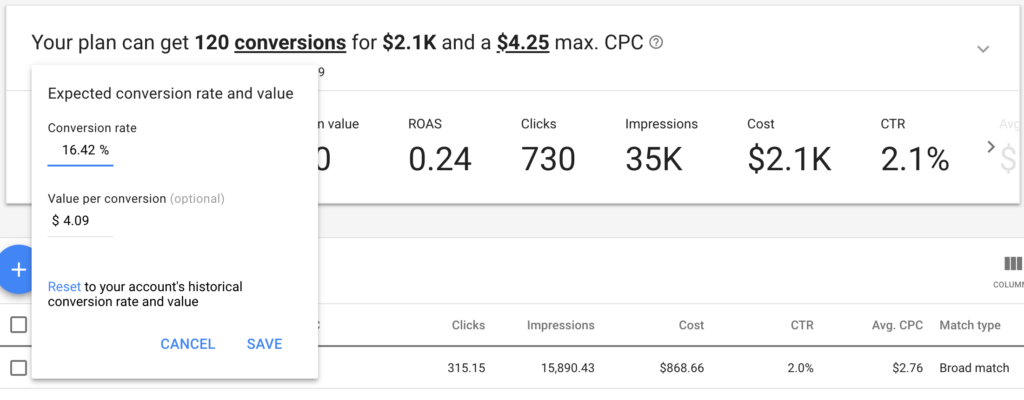
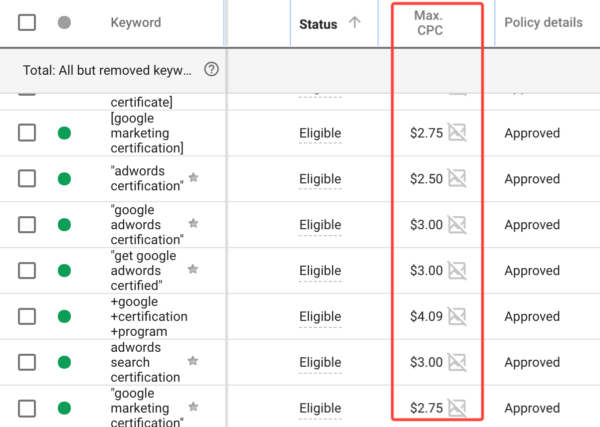
However, there are a couple of things to look out for when evaluating Google’s forecasts. If you look at the big bold conversion estimate below, you’ll see that Google is basing my projections on a 16.42% conversion rate, and $4.09 conversion value.
The estimates in the forecast use data from a recent lead generation campaign I tested, not a sales campaign. The GKP is assuming all campaigns will convert the same way. But we all know that lead generation campaigns convert at a much higher rate than sales focused campaigns.

Fortunately, we can adjust both our conversion rate and conversion value in the forecasting tool.

How to get conversion data in a new account

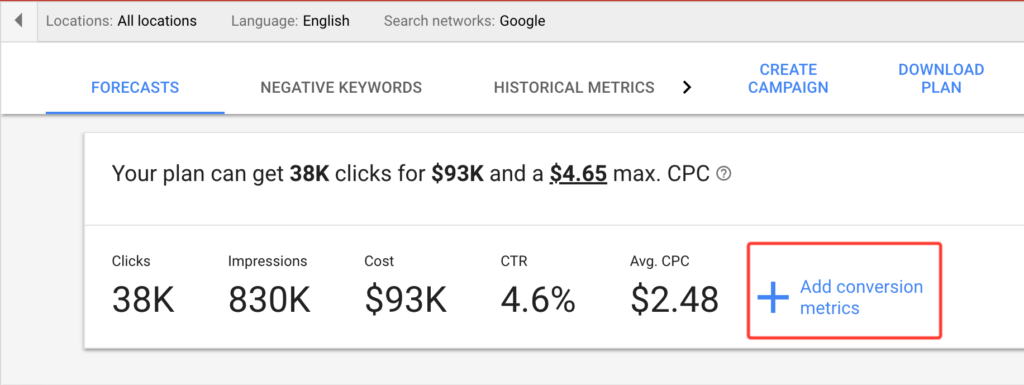
If you don’t have any advertising history in your account, your forecast will look drastically different from mine. Google is likely to base your estimated performance on clicks instead of conversions.

You can adjust the focus of your forecast by clicking the big blue “Ad conversion metrics” button.

Set your max CPC to fit your budget

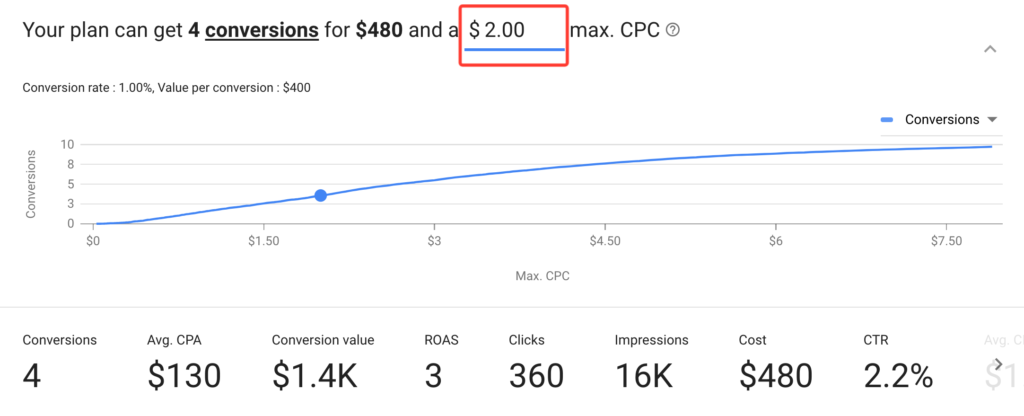
The GKP makes it easy to see how your budget will affect the performance of your ad plan. You can adjust your max CPC, by clicking on the CPC estimate in your forecast.

Forecasting the optimal outcome

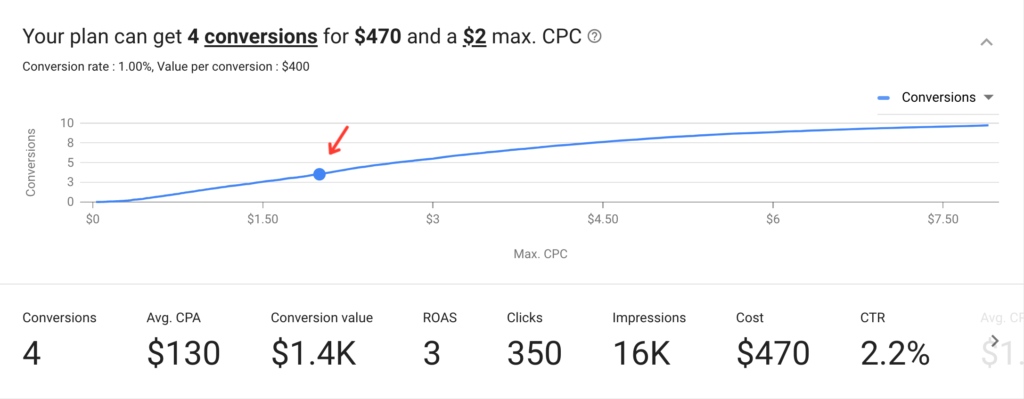
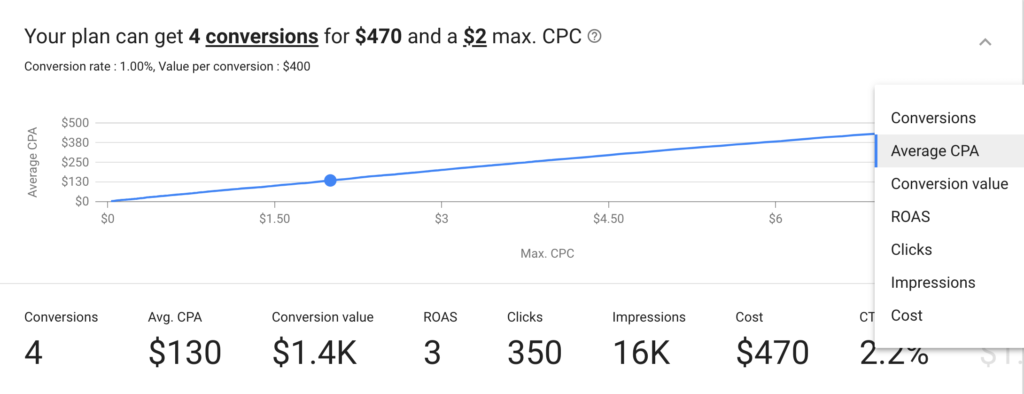
My favorite feature of the Google Keyword Planner is easily the forecasting graph. The graph is great for estimating the optimal CPC for the keywords your targeting. You can find the exact point on the graph where your CPC bids will reach diminishing returns, and gauge that number against your Return on Ad Spend (ROAS).

ROAS, average CPA, conversion value and More!

You can also change the y-axis on the forecasting graph to display a multitude of other metrics. You can measure your max CPC against ROAS, average cost-per-acquisition (CPA), conversion value and more.

Going beyond ROAS to find your real point of profit

Forecasting how your keyword plan will affect your ROAS is informative. But it’s good to keep in mind that ROAS is an advertising metric, and it’s not the same as ROI. ROAS is the amount of revenue produced by an ad campaign, divided by the ad costs of that ad campaign. ROAS does not take into account offline factors, including the cost associated with producing your product or service.

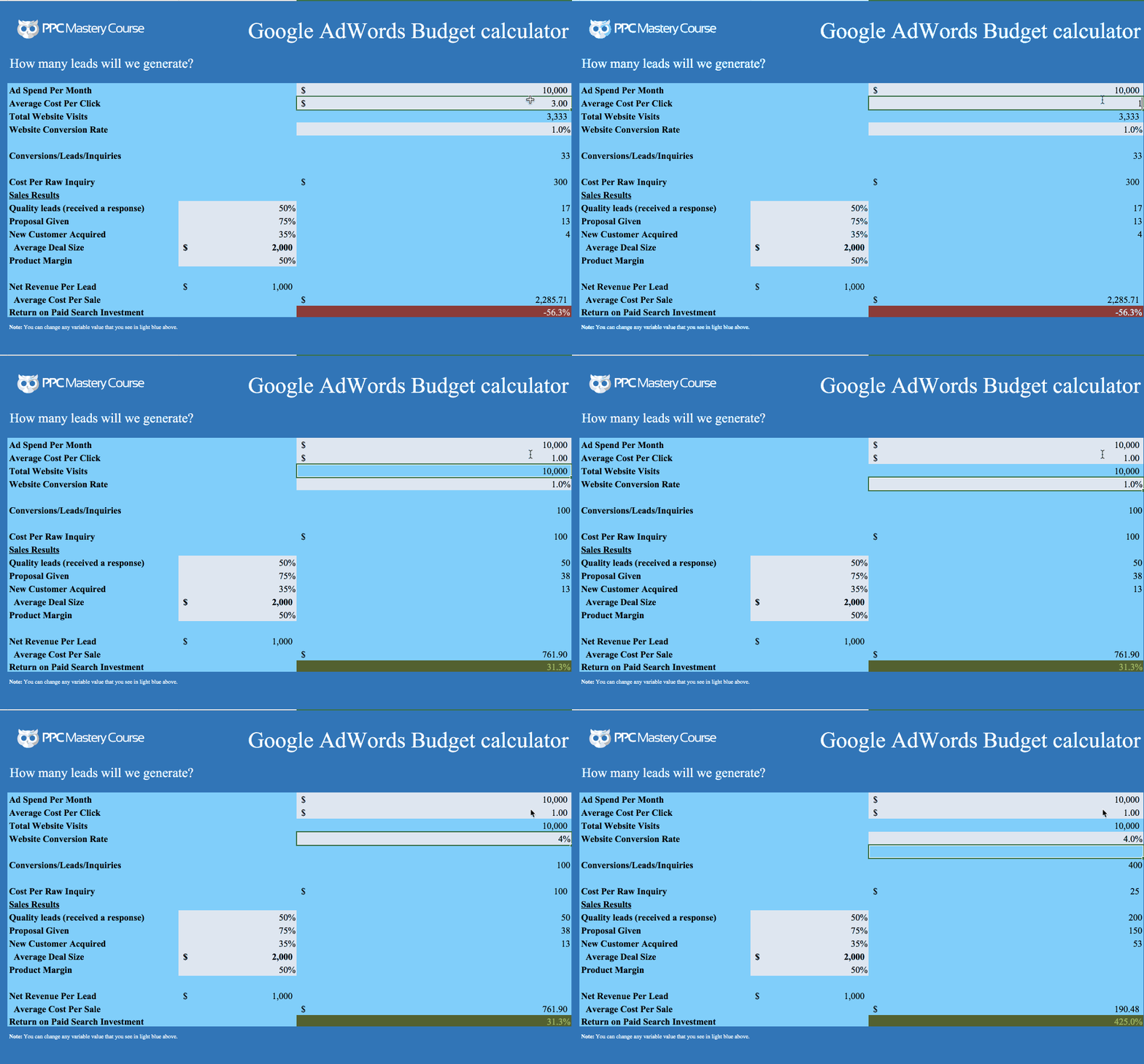
Combine GKP data with our Google Ads Budget Calculator for ROI based estimates

You can use my Google Ads budget calculator, along with the forecasting metrics from the GKP to help you project the profitability of your ad campaign.

Plug your estimated conversion rate, CPC, and estimated monthly budget into the calculator. Then, add in your profit margin for your product or service, and your offline conversion metrics to see how your GKP forecast impacts your ROI. (To learn more about how to use this calculator check out our  guide for calculating your Google Ads budget).

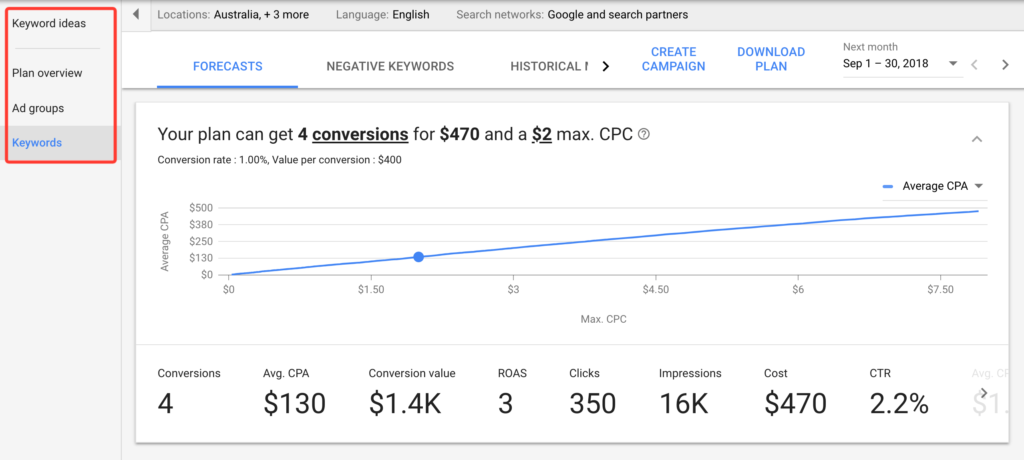
Multiple levels of forecasting

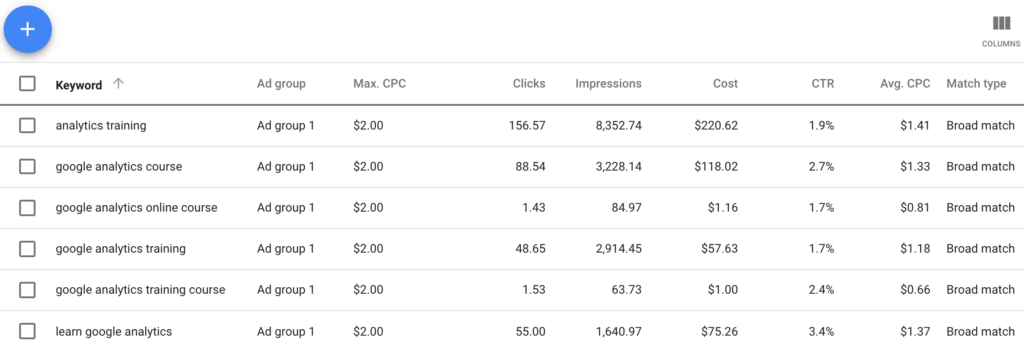
Depending on which tab you’re working in, ad group, keywords or plan overview, you can access different estimates.

The keyword view is useful for assessing how your budget will get distributed in your new ad group (absent of any additional setting changes).

The plan overview also shows a couple of interesting data points you can use to dial in your strategy.

Location estimates help you target the best markets

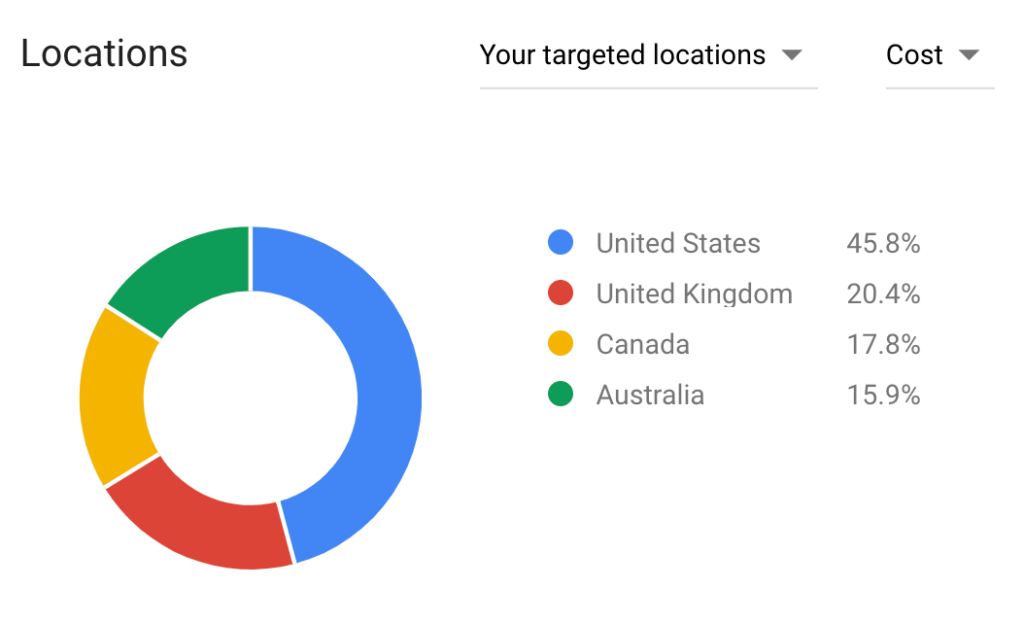
The location estimates should help you see where your biggest markets are, and if you need to adjust your location targeting further.


Using Device estimates to build your advertising strategy

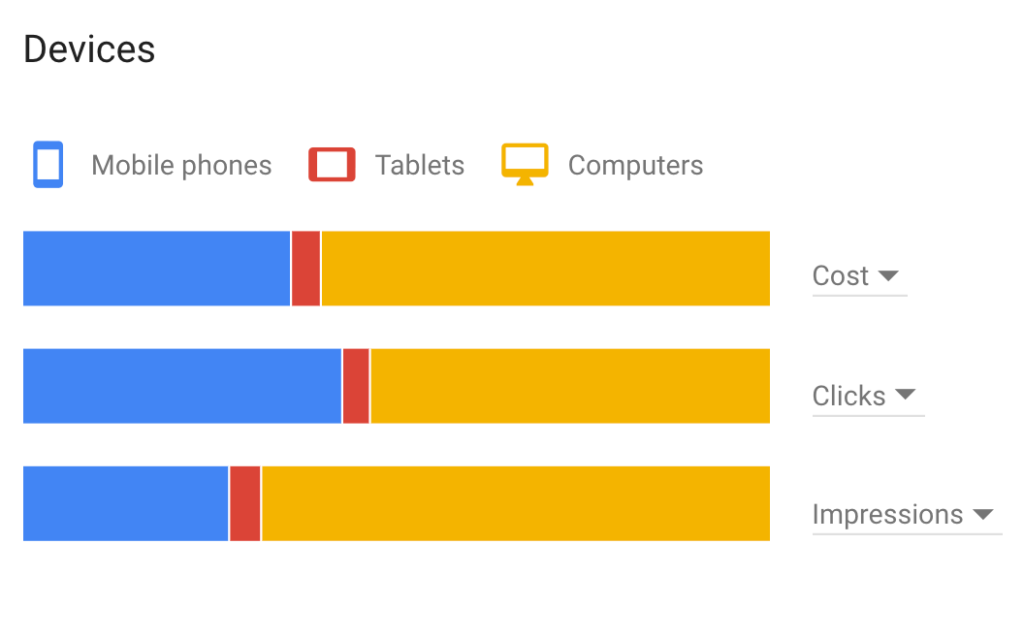
The device estimates should give you a good idea of the distribution of clicks your keywords will generate across user devices. These estimates can help you determine if you want to adjust your keywords bids by device or segment your campaigns to target different devices.

As you can see, the new keyword planner is pretty comprehensive. It is simpler, and I will even agree with Google that it is BETTER than the previous version. Sure, the simplicity can cause some issues finding your favorite reports, but it should all be available inside the GKP tool. Hopefully, this guide helps you find things more quickly, and explore advanced functionality!

Overall review of the new Google Keyword Planner

Here are the key things to remember when using the GKP

  • Your account history will have a significant impact on the data you can access.
  • Use other tools, like Keywords Everywhere, to help fill in the gaps in GKP data if you need.
  • Use the filters, and targeting settings in the GKP to focus your keyword list.
  • You can use the forecasting tool to find optimal Max CPC for your keywords.
  • Your location and device forecasting should help inform your advertising strategy.
  • When evaluating your conversion forecast, double check your conversion rate and value settings to make sure they are realistic.
  • The Keyword Planner’s suggestions and forecasts should be a starting point for your keyword research, not the conclusion.
  • I still recommend building your campaigns and ad groups in AdWords editor, rather the Keyword Planner.
  • Google Ads will not show your ROI. Use your own data and other tools (like our Budget Calculator) to see how you can make advertising with Google profitable.

What’s my verdict on the latest version of the Google Keyword Planner?

So, what’s my impression of the new GKP? The latest version of the Google Keyword Planner is simpler and better than the old version.

If you an active advertiser with Google, the focus on conversions in your forecasting is a welcome update.

If you’re not an active advertiser, Google’s changes to the Keyword Planner may have finally eliminated any real utility this tool can offer you. You might want to start a branded campaign to get access.

Tell Google what you think! (They are listening).

One of the great things about Google’s team is that they listen to the community, and they are responsive. On more than one occasion Google’s team has responded to constructive criticism I’ve authored on this blog.

So let’s tell Google what you think.

What do you like about the latest version of the GKP? What do you hate about it? What are we missing from the old Keyword Planner? And what’s the one feature on your wishlist you would like to see Google add to the Keyword Planner?

Leave your responses in the comments below.

Filed Under: PPC News

The Google Ads Optimization Score – How to use (and not use) this new report

October 10, 2018 by Jeff Sauer

There have been a lot of changes going on inside of Google Ads lately (And yes, in case you missed the news, AdWords is now Google Ads).

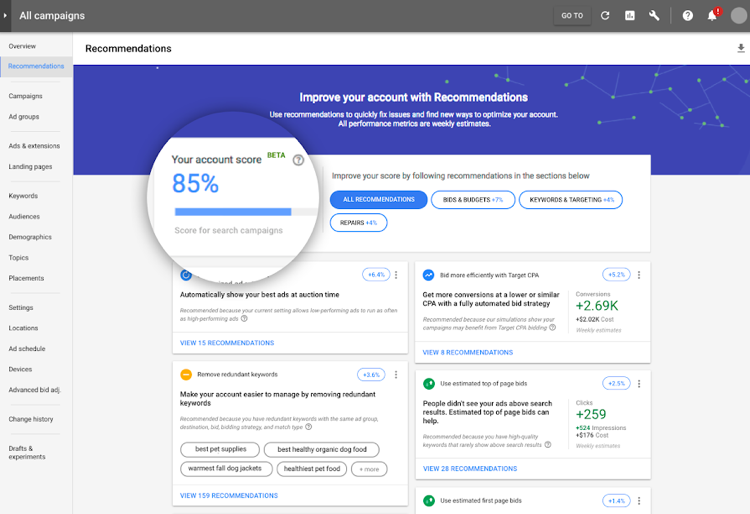
One of the new additions to the Ads interface is the optimization score. The Google Ads optimization score is Google’s way of telling you how well your account is doing, and what you need to do to improve your results.

But is this score beneficial? Or is it just Google’s way of pushing us to spend more money on advertising, disguised as help?

In this video and guide, we are going to dissect the Google Ads optimization score. We’ll look at how Google calculates this score. Then we’ll break down Google’s optimization recommendations. We’ll determine which suggestions are useful, and which recommendations you might be better off ignoring.

Follow along to learn how to use (and not use) the Ads optimization score.

How does optimization work in Google Ads?

Before we break down the Ads optimization score, let’s talk about what optimization means and how we make optimizations in Google Ads.

Optimization is defined as the action of making the best or most effective use of a situation or resource.

Of course, for most online marketing efforts, there is no such thing as best. But there is better. And within Google Ads, there are always opportunities to make your advertising more cost-effective.

Let’s review some of the areas where we can make improvements to our Ads account, and then we will analyze Google’s optimization recommendations.

Types of Google Ads Optimization

Bid optimization – Increase CTR or lower CPA

Bid optimization involves adjusting your bids to maximize your results. Often advertisers will raise their bids to improve their Ad Rank, which in turn will increase their click-through rate (CTR), and potentially increase conversions. Or an advertiser will lower their bid in an attempt to reduce their cost per conversion, and increase their profit margins.

Ad copy optimization – Automatic rotation vs. even rotation

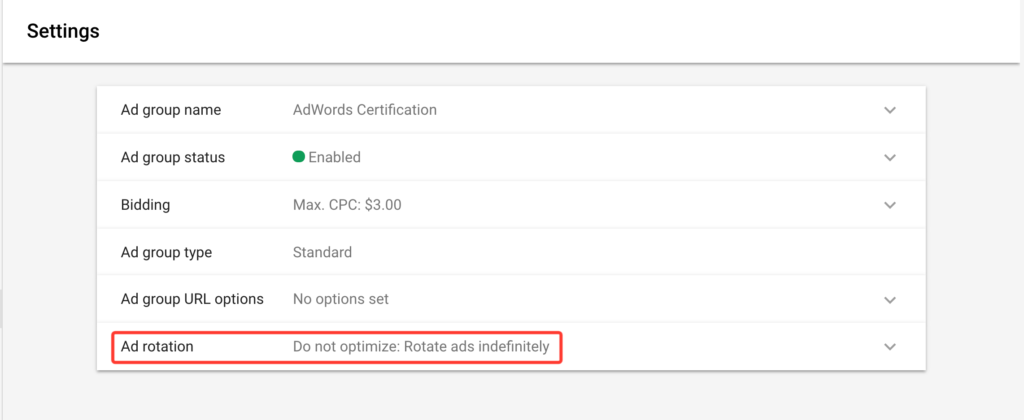
Ad groups exist to allow you to test and improve your ad copy. One of the simplest ways to optimize your ad copy is through ad rotation. By default, Google always wants to enter the ad that gets the most clicks in the ad auction. But if you change your ad rotation settings so that your ads are displayed evenly, you can get more complete data about all your ads. Then, you can choose your best ads based on cost and conversions, as opposed to clicks.

Landing page optimization – Better landing page experience = more conversions

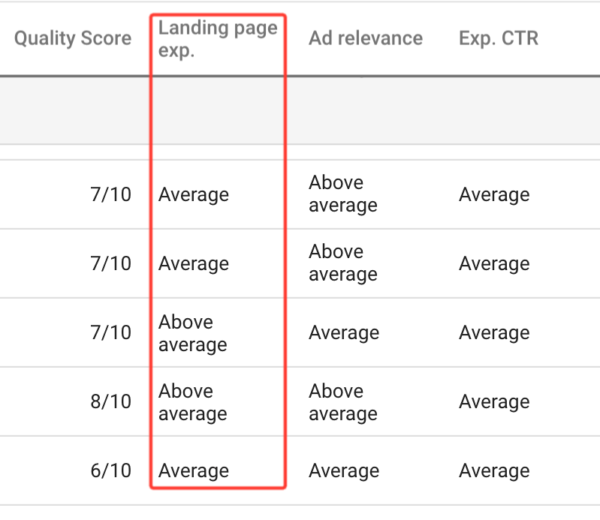
Landing page optimization is one of the most overlooked adjustments an advertiser can make. Creating unique landing pages for each ad group allows advertisers to match their landing page copy to their ads and keywords. Matching your landing page copy to your ads and keywords will increase your Quality Score, which will lower your CPC and improve your ad rank.

Also, enhancing your users’ landing page experience is one of the best ways to increase your conversion rate. If your ads are getting clicks, you can almost always get better results by upgrading your landing pages.

Keyword match type optimization – Match types for each stage of the keyword life cycle

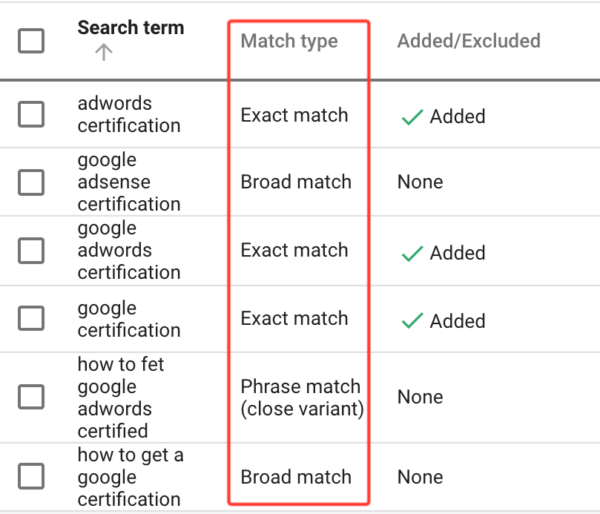
Keywords are the fuel that powers Google Ads. But finding cost-effective keywords to advertise on can be hard. One of the best ways to optimize your keywords selection is to test match types. When you identify new keywords to test, you want to use broad and broad match modified keywords so you can accumulate enough data to learn to from your results. But as you refine your ad groups, you can use phrase and exact match keywords to help reduce spending on wasted ad clicks.

Search term optimization (and negative keywords)

Running ads on broad and broad modified match keywords will feed a lot of data into your search query report. You can optimize your keywords by mining this report. You can pull out the best keyword variations and build new ad groups around them. And you can add the search terms that are leading to wasted clicks to your negative keyword lists.

Quality Score Optimization

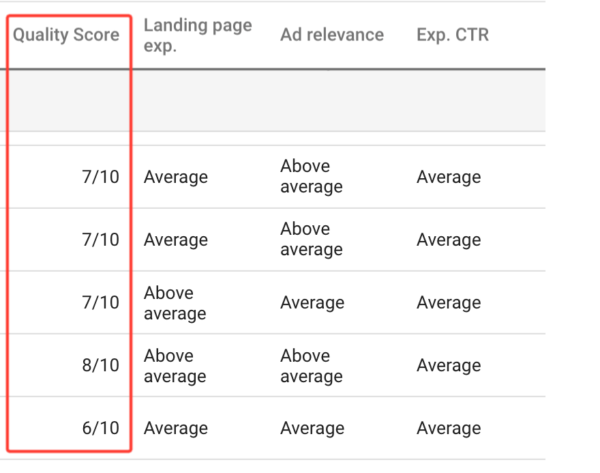
Many of the other optimization techniques we’ve discussed will help you improve your Quality Score. Higher Quality Scores lead to higher Ad Rank, at a lower cost. And if you’re a conspiracy theorist like I am, then you might believe that earning good keyword Quality Scores can impact your mythical (but potentially real) Google Ads Account Quality Score.

Profit optimization – The most important metric isn’t in the Ads interface

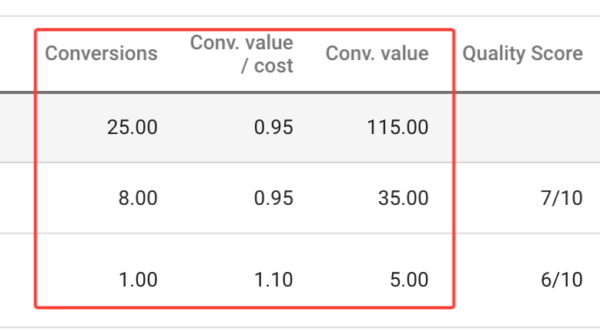
It’s easy to get focused on all the metrics in the Ads interface. After all, there’s so many to choose from, clicks, CTR, average CPA, ROAS, etc. But, you know which metric you won’t find inside of Google Ads? The most important metric, PROFIT. Unless you’re a big budget advertiser running a branding campaign, you should always focus on profit. So when you evaluate your optimization score keep your ROI in mind. All the optimizations in the world are useless if they don’t increase your ability to earn a profit using Google Ads.

Google Ads budget calculator

Campaign and ad group optimization – Why SKAGS work

The key to better results from your campaigns and ad groups is granularity. The reason to build granular ad groups and different campaigns for different audience sets is not to create more work for ourselves. But rather to see better data in our accounts. When you can directly match your results to your actions, you can make better decisions. So, for example, if you are using single keyword ad groups (skags), you can tie your results directly to your specific keywords and their match types. But if you jumble a bunch of similar keywords into the same ad group, you may have trouble identifying which keywords or keyword match types are responsible for your results.

Building targeted campaigns and well-organized ad groups is one of the best ways to optimize your account structure and get better results.

Budget optimization – Small adjustments are the key to big results

Budget optimization is all about getting the most out of your budget given your cost constraints. How can you get more out of the $1000 a month, approximately $30 a day? Where should you place your bets? Sometimes you can get higher value clicks by adjusting when your ads display. Other times you can maximize your CPC by improving your location or demographic targeting. We all have budget limitations. Making small changes to your bids, ad rotation, and targeting can help you maximize the volume of clicks or the quality of clicks your budget can buy.

Account Optimization – The work of a PPC pro is never done!

We all want our advertising to be successful, and Google will reward you if you optimize your account. If you’re logging into your Ads account, checking your recommendations, and making small changes every day, the results will follow.

Conversion optimization –  The results that matter

Optimizing for conversions may be the most important thing you can do in the ads interface. Getting results, opt-ins, sign-ups, downloads, and sales is what drives our advertising. And, as with everything else in the Google Ads ecosystem, winning conversions has a compounding effect. Google wants to show the ads that get results. So optimizing for conversions will often lead to more conversions.

One score to quantify all your optimization opportunities?

Until recently, there wasn’t a reliable and unbiased indicator to tell you which adjustments to your account are likely to have the most significant impact.

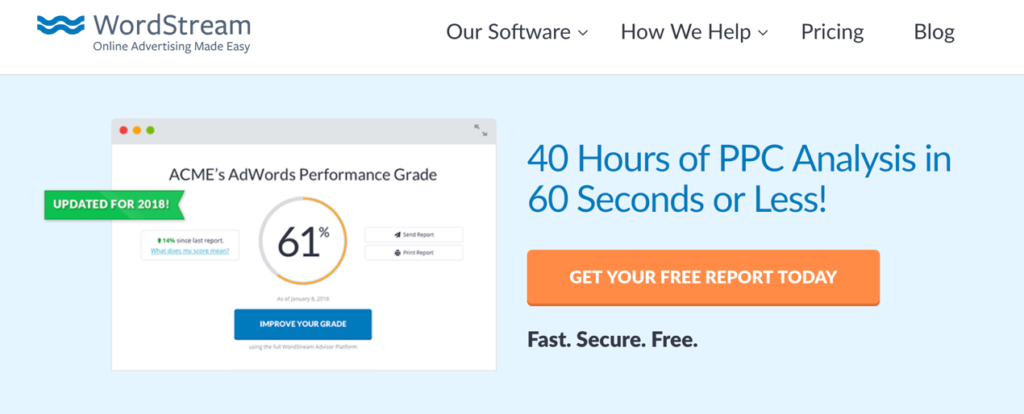
You could use third-party tools like Wordstream to grade your account.

But no single, native Google Ads metric explained how your account was performing overall.

Until now…

What is the Adwords optimization Score?

Oops, I meant to write Google Ads optimization score there.

Your optimization score is an account performance grade ranging from 0 to 100%. The score is calculated based on the results you’ve earned, your settings, and your status as an advertiser. The score factors in how well your account matches Google’s recommendations. And it also measures how much of an impact fully adopting Google’s automated suggestions would have on the results Google values.

Now, as helpful as this score sounds, we don’t want to follow Google’s machine-generated advice blindly. So let’s go inside my account, take a look at my score and see how we can use this information.

Account optimization score

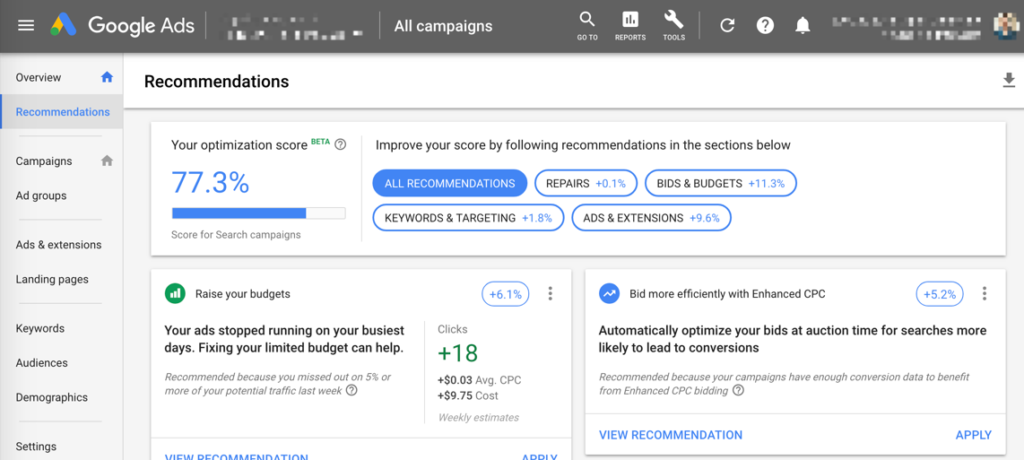
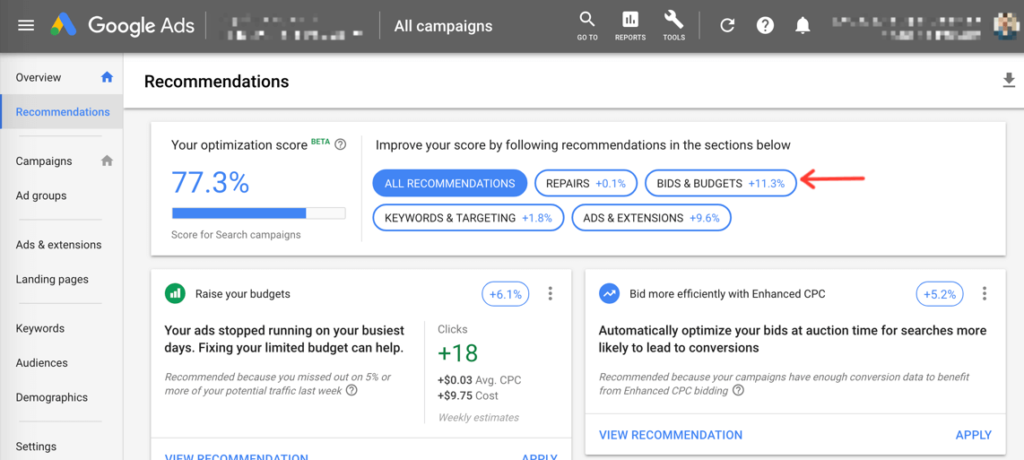
As you can see, my optimization score is front and center in my recommendations tab. And it’s not all that impressive – a 77.3%. If Google were handing out letter grades, I’d be getting a C+.

But if you have taken any of my PPC training courses before, then you know that I don’t always follow Google’s recommendations. And that’s because Google’s objectives are not always the same as mine. Google wants me to maximize my bids, and I want to maximize my profit. Sometimes those objectives work in harmony and sometimes they don’t.

Campaign level optimization score

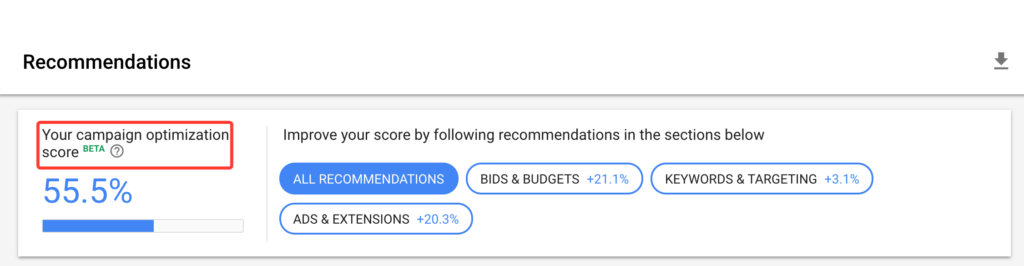
There are a couple of other important things to note about this feature. You can also get an optimization score at a campaign level.

Adjusting your optimization score

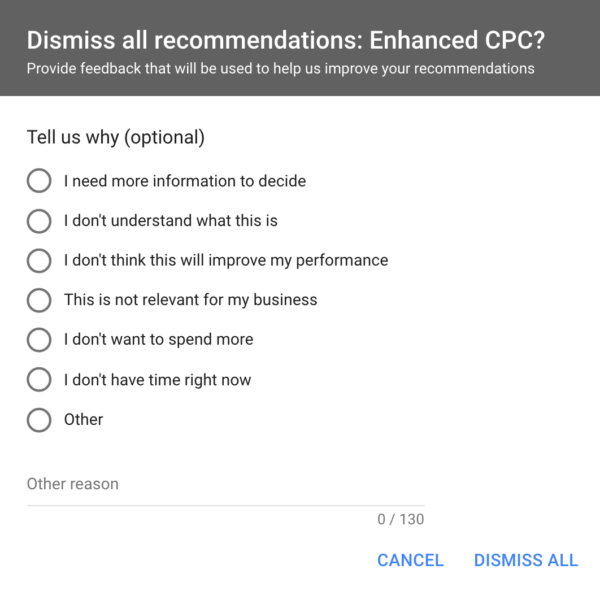
You can improve your optimization score by dismissing Google’s recommendations. But, if you’re going to reject Google’s suggestions, be prepared to answer for your decision! Google isn’t going to let you off the hook without knowing why you don’t like their advice.

Interpreting your optimization score

Let’s take another look at my account optimization score and see what improvements Google thinks I should make.

Investigating bid and budget recommendations

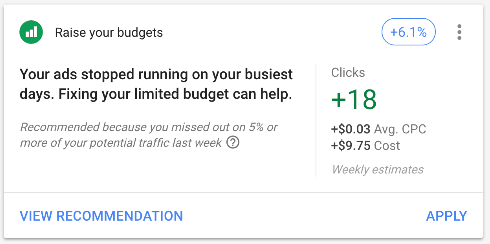
The most significant proposal in my optimization score is that I increase my budget. Now, I have my budget capped at a pretty low amount because I use this account to test out techniques and create training videos (like the one in this article) for my courses.

Should you raise your budget?

In this case, Google’s budget advice appears to be pretty spot-on. Google’s telling me that if I raise my bids $.03, and spend about $10 more a week, I’ll get 18 more clicks. That sounds reasonable. And if I want, I can apply this recommendation with one click.

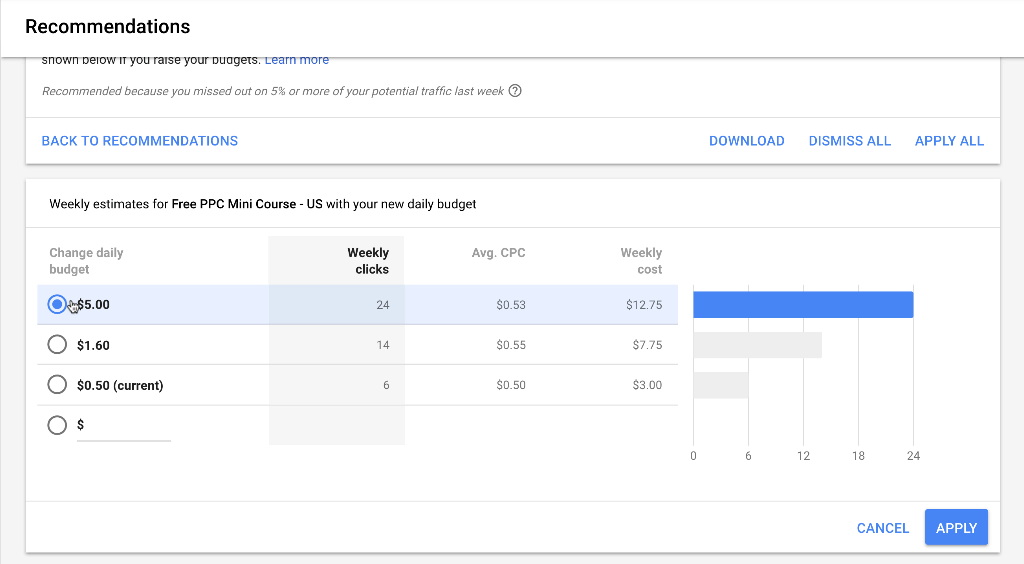
But when I take a look at the budget increase I’ll be authorizing if I accept this suggestion, I see a different picture. Google wants me to raise my daily budget from $.50 to $5.00 a day. This bid adjustment has the potential to change my monthly budget from $15 to $150. That’s a 1000% increase in spending. Google makes this recommendation look enticing in their “pretty” suggestion box. But there’s more going on here than we can see in this neatly formatted recommendation widget.

One-click “Apply” vs. keyword level adjustments

A better course of action would be to evaluate the specific keywords and ads that are limited by budget. Then, if need be, I can increase my bids at a keyword level and monitor the impact my budget increase has on my performance and overall budget.

Although I agree with Google’s suggestion that I should increase my spending, I don’t agree with Google’s tactics for increasing my bids. Accepting Google’s budget suggestion might not be detrimental in a small test account. But authorizing a 1000% budget increase could be disastrous for a large advertiser with a big budget.

Enhanced CPC bidding recommendation (but where’s the data?)

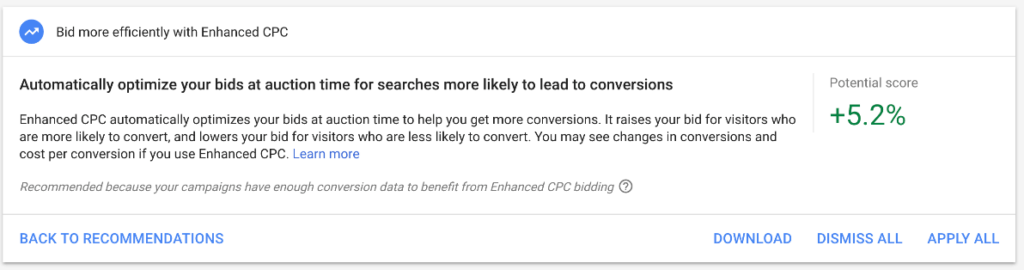
Another one of Google’s budget-related proposals is that I move to enhanced CPC bidding. This suggestion doesn’t provide any data about how enhanced CPC is expected to impact my results. So, I am disinclined to approve this suggestion without further analysis.

Don’t forget about structured snippets!

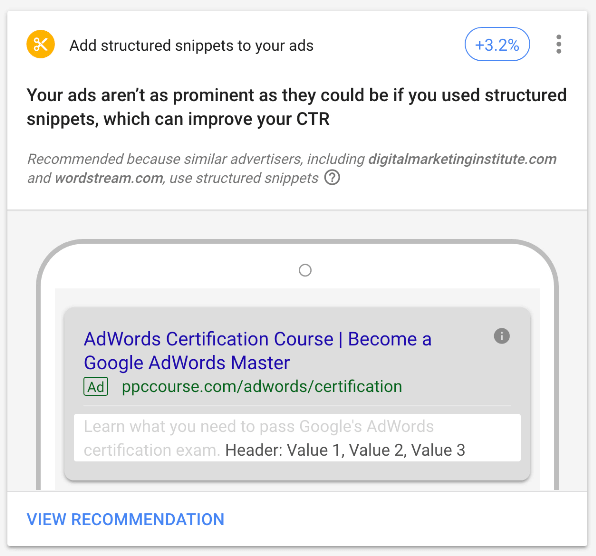
Google’s recommendation that I add structured snippets is pretty much a no-brainer. I should be using structured snippets with my ads. I should be using as many extensions as I can reasonably enable with my ads. However, putting these extensions in place requires configuration. Unfortunately, there’s no one-click “Apply” option for this optimization.

Keyword optimization recommendations

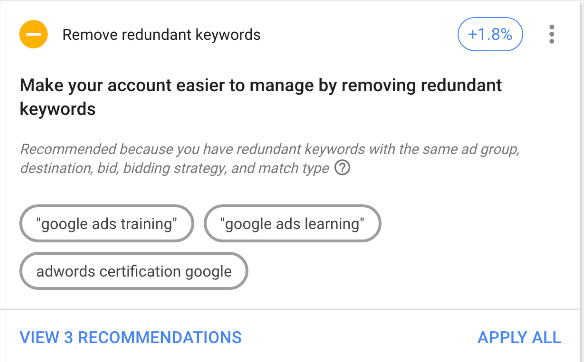
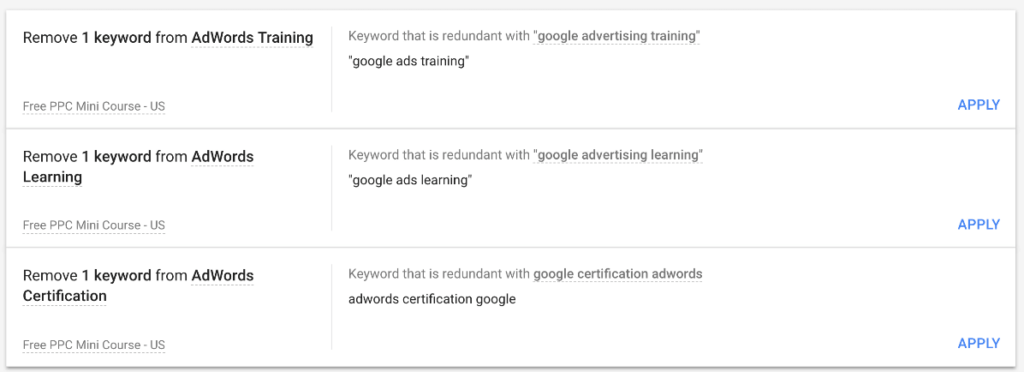
Google’s keyword recommendations are not exactly straightforward. They want me to remove the redundant keywords from my ad groups. It’s important to remember that Google’s artificial intelligence technology generates these suggestions. So although your optimization score provides quantifiable ways to improve your account, there will be circumstances where the suggested changes lack context. My keywords suggestions appear to be one of those scenarios.

Redundant keywords or match type confusion?

I am using the phrase match keyword “google advertising training.” And Google is telling me that “google ads training” is a close variant that I should remove from my ad group. But I want to look at my search query report and keyword level CPC data before I apply this change. Testing close variants can be a great way to find new keywords, as long as your match type settings are not causing wasted clicks. If these keywords are set to phrase and exact match, there shouldn’t be much redundancy.

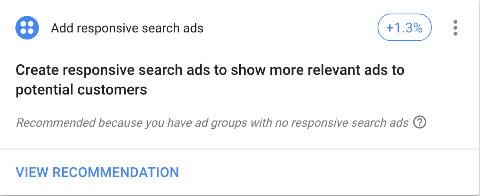
Responsive search ads are here – we should use them!

This recommendation is on my to-do list. So as soon as I get time, I’ll go into my account and test Google’s new responsive search ad options.

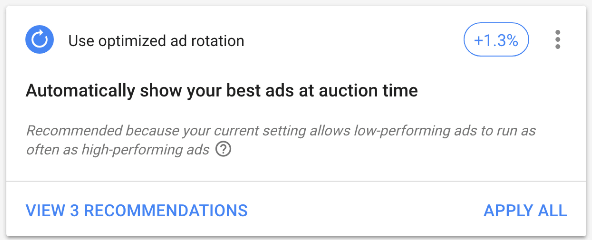
Automatic ad rotation (probably not)

Google wants to be able to select my best performing ads for the ad auction. Ad rotation is one recommendation I will be ignoring completely. If I adopt this suggestion, Google’s likely to select my ad rotation based on clicks. But, I prefer to set my ad rotation evenly, so that I get a chance to see how my ads perform and I can optimize my ad rotation for conversions.

Scoring the Ads optimization score

Overall, I would say the optimization score is a great new feature. This score helps you get an idea of how your account measures up to Google’s suggested best practices. And the percentage improvement scores are a quick way to see which changes are predicted to have the biggest impact on your results. Also, if you want to follow Google’s guidance, it’s easy to apply the suggested changes.

Just keep in mind, it’s a good idea to be discerning about Google’s advice. Google’s objectives are not always the same as yours. And Google can’t factor your most important metric – profit – into their optimization score.

Let’s wrap this up by reviewing what we learned about the optimization score.

Reviewing Google’s optimization recommendations

  • Many of the recommendations in this score are spot-on

The majority of the recommendations that make up my optimization score are not overly biased in Google’s favor. And implementing these optimizations is likely to help my account performance. However, I’d avoid using the one-click “Apply” feature for bid adjustments and keyword selection. This feature has the potential to make changes to your account on a larger scale than you might want. Instead, I’d advise making adjustments at the keyword level in the Ads interface or using AdWords Editor.

  • Much like passing the Google Ads exam, a 100% score may not be achievable (or desirable)

A 100% optimization score should not be your end goal. Maybe 90% is a pretty good target? As we discussed, embracing all of Google’s suggestions might not help you achieve your objectives.

  • Focus on results, not on arbitrary scores

The optimization score is a fun new tool. But stay focused on deploying the tactics that will help earn the results you need. Use the optimization score to find opportunities that have synergy with your advertising strategy.

  • You have nothing to lose by checking your score today!

Evaluating your optimization score can only help you learn more about how to improve your advertising. This score should be available in your account. Go check it out today!

What is your optimization score? – Leave a comment with your score.

What’s your optimization score? Did you beat mine? Leave a comment with your score below. And if you’re unsure about how to act on the recommendations in your account, feel free to leave a question in the comments. We’ll try to help you figure out if Google’s giving you sound advice, or if you need to do little more investigation before applying Google’s recommendations.

Filed Under: PPC News

Advanced Conversion Tracking in AdWords – Lead forms and third-party sites

April 16, 2018 by Jeff Sauer

Do you use forms to capture leads in Google AdWords?

Forms are a great way to collect information from the people that engage with your PPC campaigns.

Collecting email addresses, phone numbers, and other contact information can help you turn a lead into a long-term customer.

Lead form submissions are valuable conversions that we need to track in AdWords.

But tracking form submissions can cause some pain for AdWords managers, depending on how your site is set-up.

Often, as an AdWords account manager, you don’t have control of your company or client’s website. So, you have to use some advanced techniques to track conversions.

In this video and post, we’ll look at how to track form submission in AdWords.

I’ll also show you how to test your conversion tracking using free tools from Google.

Finally, we’ll look at some advanced strategies you can use to track conversions when you don’t have access to your client’s website. These advanced conversion tracking strategies are particularly useful for AdWords managers that have to track e-commerce conversions to third-party sites, like Shopify or Samcart.

Conversion tracking is an essential part of AdWords success

Conversion tracking is a fundamental part of online advertising success. If you don’t track conversions, you shouldn’t advertise online. Why? Because you’ll never know the ROI of your ad spend if you don’t track conversions.

We’ve shared a couple of tutorials about specific aspects of conversion tracking over the past six months.

In October, we looked at latest AdWords conversion tracking updates. And we reviewed how to use Google Tag Manager (GTM) to get your conversion tracking in place.

Conversion tracking with Google Tag Manager

conversion tackin in GTM

Last month, we looked at the steps you need to follow to make sure you’re tracking you AdWords conversions the right way.

The right way to track conversions

conversion tracking in AdWrods

But sometimes, we have to go beyond the basics. Sometimes we come across advanced scenarios where the standard tracking doesn’t work. Or we are unsure of how to test the code we have in place.

PPC Course student Question

One of PPC Course students sent us great questions about testing conversion tracking.

I created a tag to track conversions when a user fills in a form. I put the code on the thank you page. To test, I filled in the form, and received the landing page with the pixel as I expected.

Shelly is trying to make sure the tracking she has in place for her lead form is working.

Essentially, Shelly wants to know if her conversion tracking tag is setup correctly. She also wants to know why she can’t see a conversion in her AdWords account when she tests her lead form.

Let’s answer Shelly’s question using a live website. Going hands-on will allow us to see how AdWords conversion tracking works in GTM.

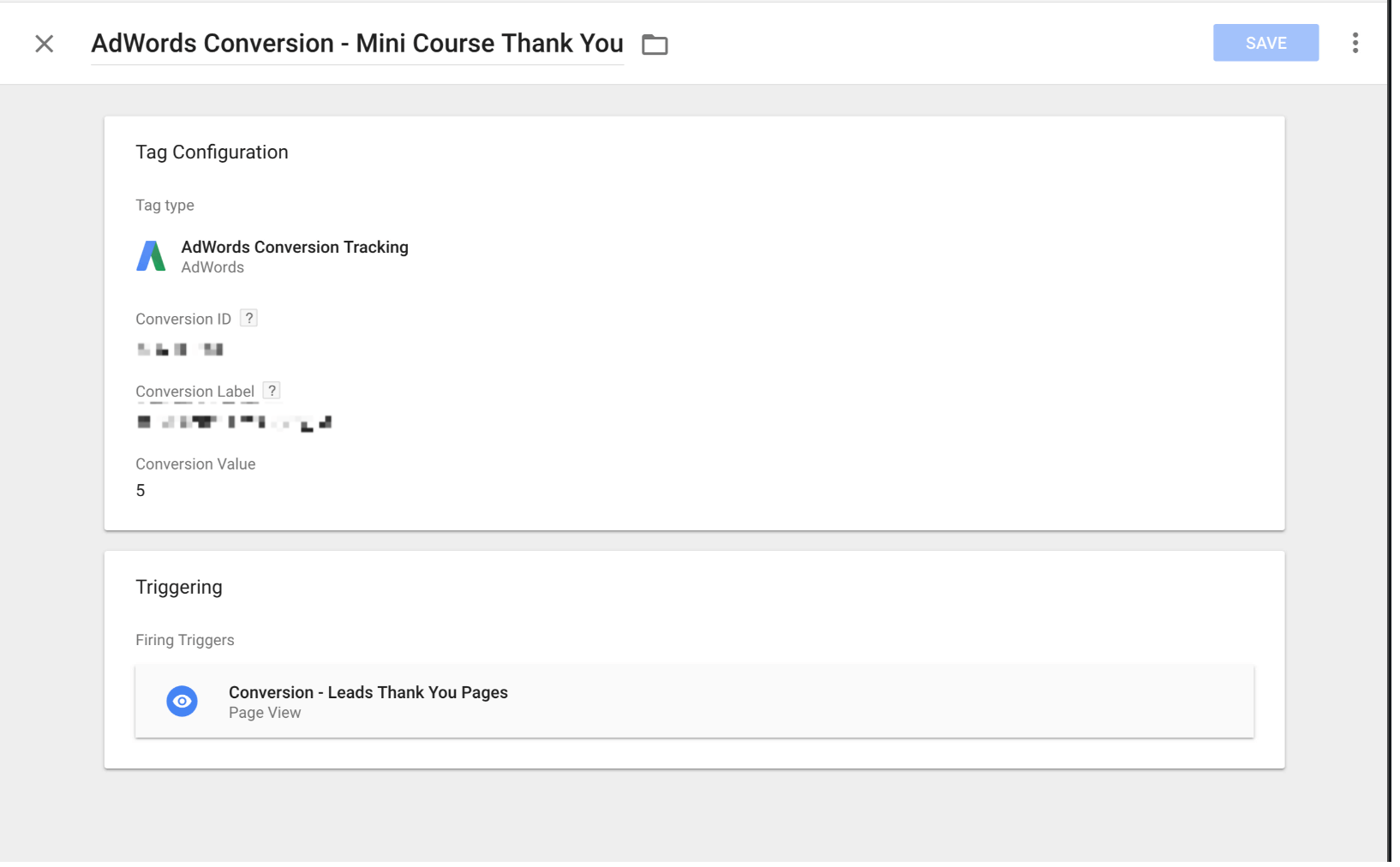
Here’s an example of the GTM conversion tag for PPC Course. The trigger for this tag is a pageview. When a visitor lands on our “thank your page,” after filling our lead form, the tag fires. When the tag fires a conversion is recorded in AdWords. You can also see, I’ve given every lead from submission a conversion value of $5.00.

advanced conversion tracking with google adwords

Let’s see what our conversion tag looks like in action.

Checking your tracking tags with Tag Assistant

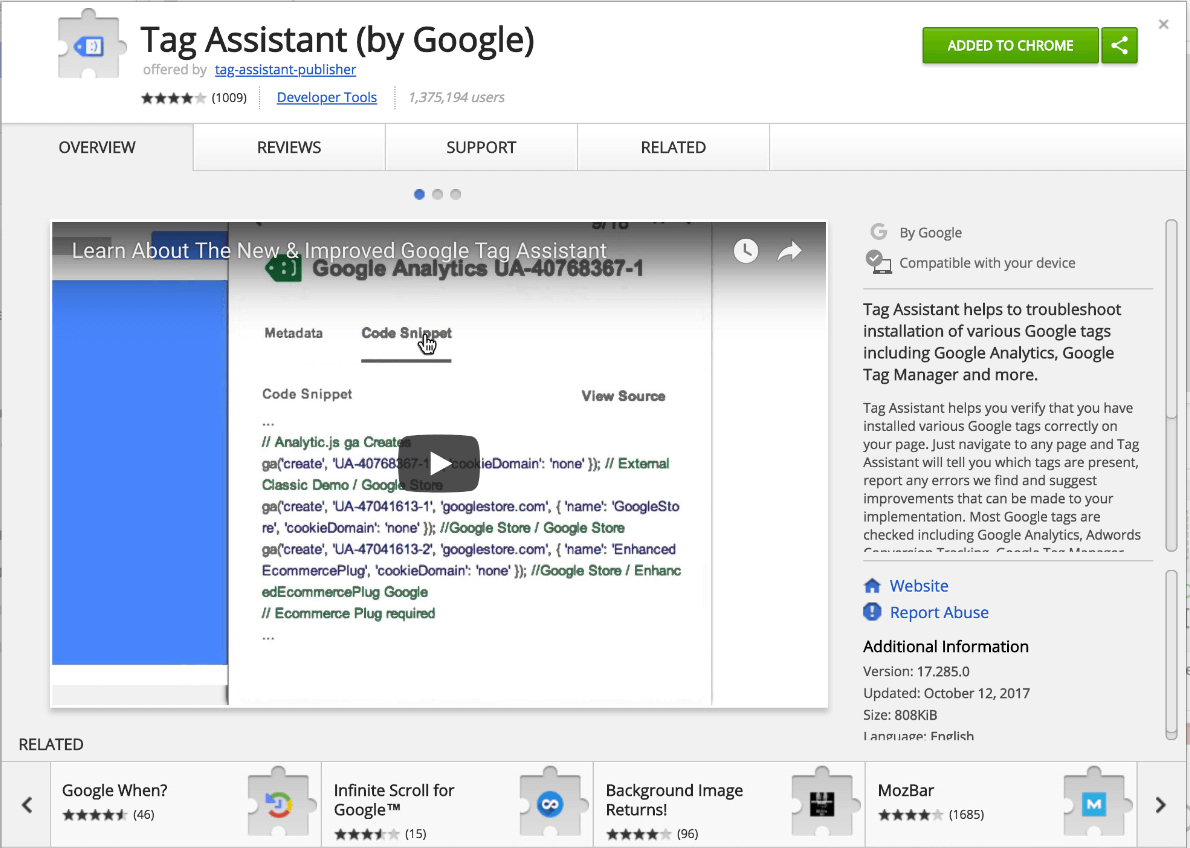
We can check our conversion tag using the Google Chrome extensions, Tag Assistant.

tag assistant

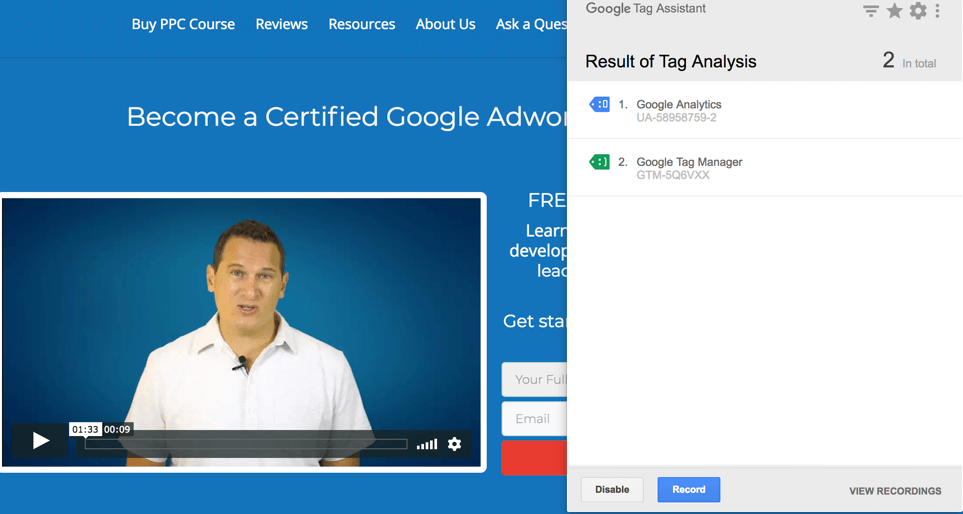
If we take a look at the PPC Mastery Course site using Tag Assistant, we can see two tags. One of the tags is for Google Analytics. The other tag tells us that GTM is in place.

advanced conversion tracking with tag assistant

Now let’s look at what happens when we trigger our conversion tag by filling out the form on the PPC Course home page.

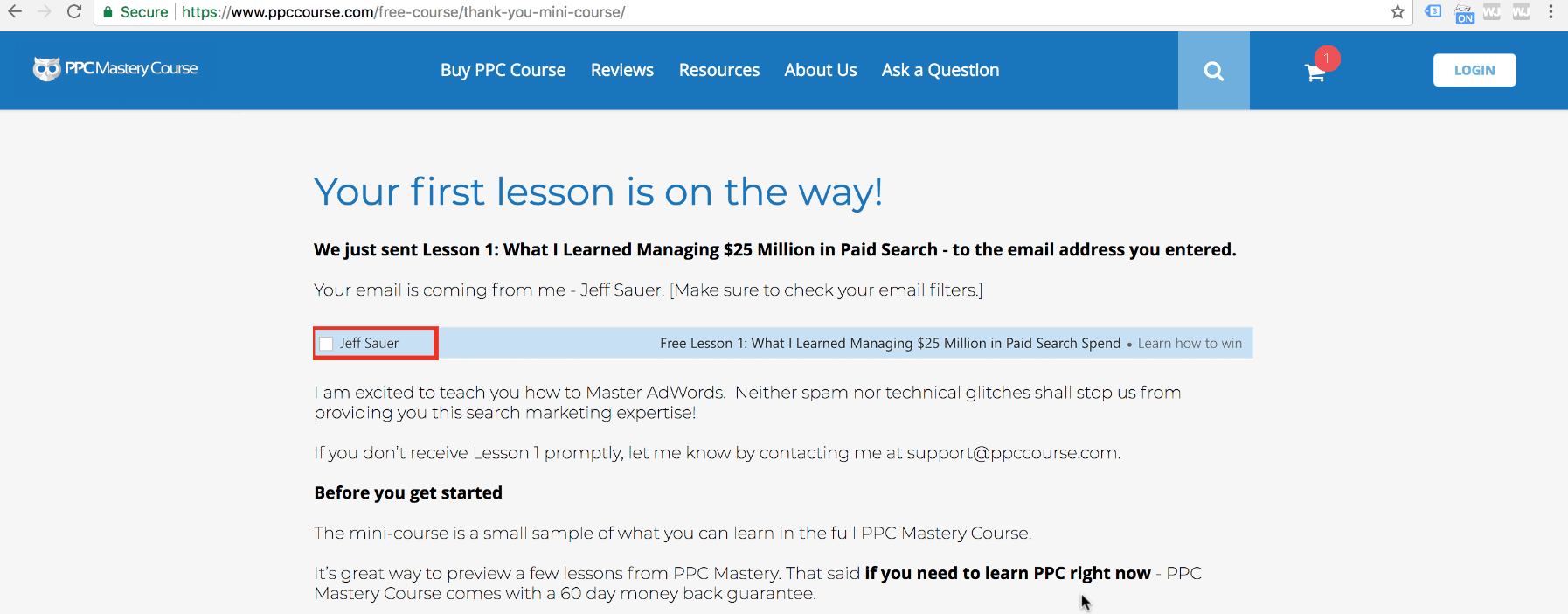
When I submit the form, I land on our “Thank you page.”

conversion page

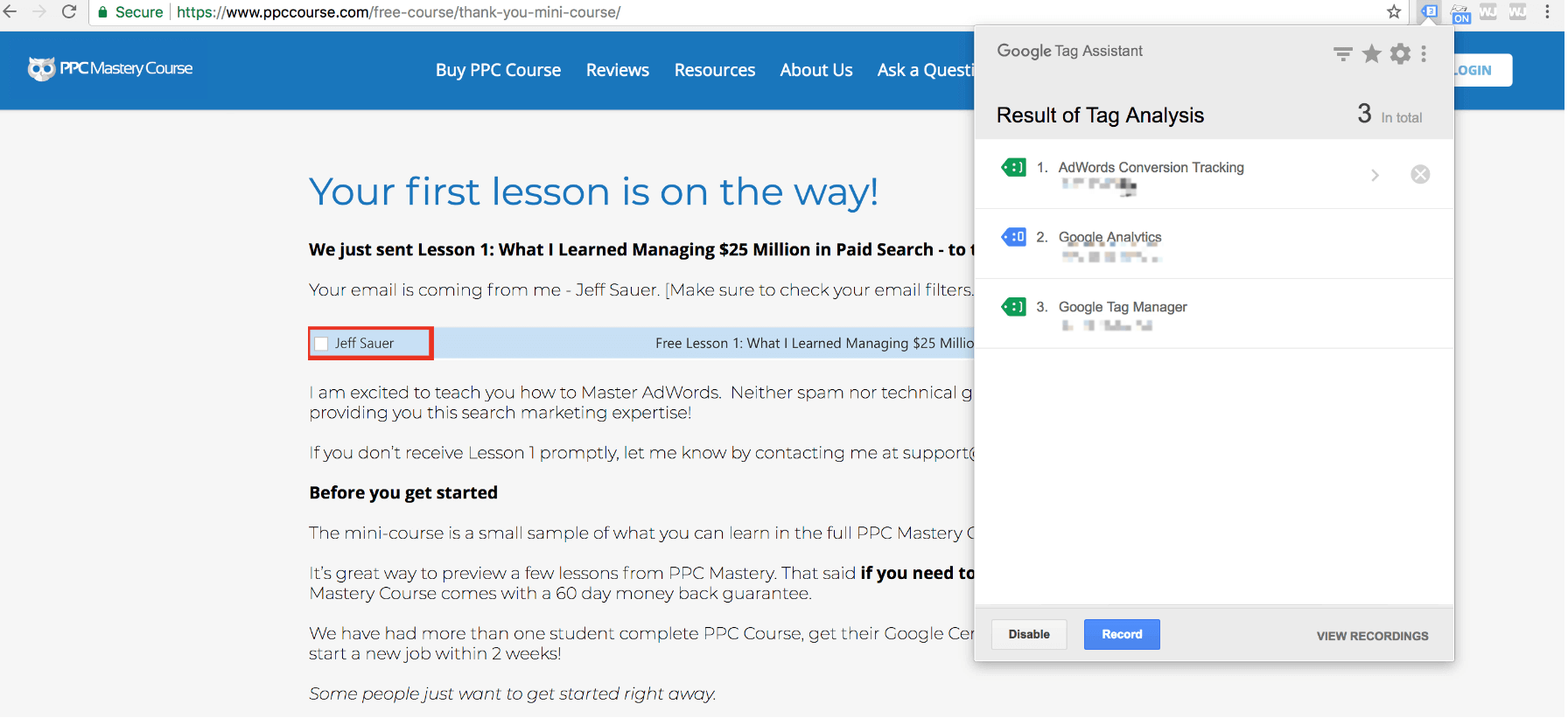
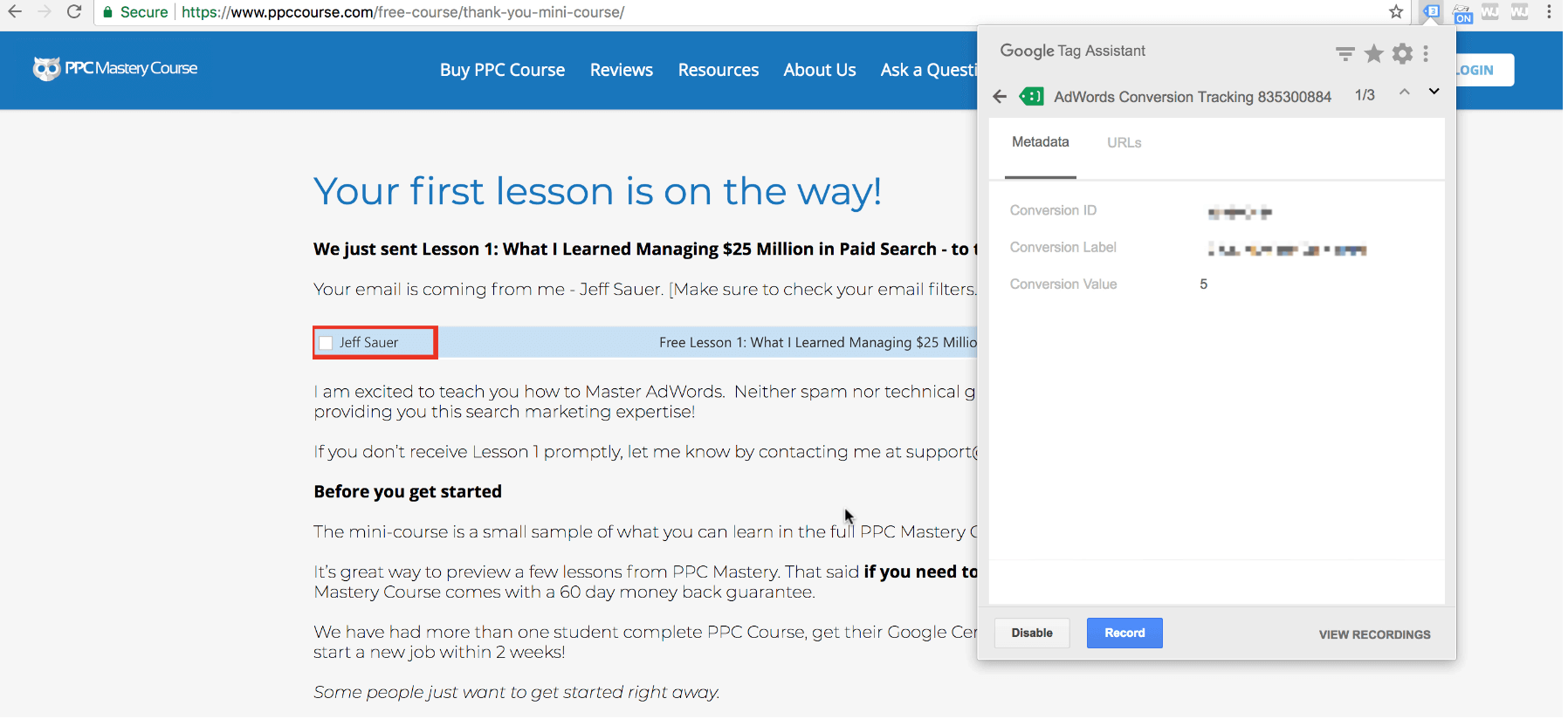
If I inspect the tags on the “thank you” page, we can see that our AdWords conversion tracking tag fired.

Advanced Adwords conversion tracking with tag assistant

And I can also double check to make sure the AdWords tracking pixel is the same as the one I installed on my site.

Advanced conversion tacking with GTM

How can you be sure that your conversion tracking is working?

The test we just performed confirms that our conversion tracking is working correctly.

But, if we look in my AdWords account, we won’t see our test conversion

Why is that?

Google Automatically matches conversions from AdWords

Our test conversion is not recorded in AdWords because of Google’s advanced matching capabilities across AdWords cookies. The platform will only report conversions from clicks that originate from your AdWords ads.

Google’s matching platform ensures our AdWords reporting doesn’t record conversions from other sources.

This system allows us to use our landing pages for multiple purposes. You can use your landing pages to capture organic traffic, or with other PPC platforms, without polluting your AdWords reports.

Now, I’ve learned over the years that I can trust the data coming from tag assistant. And Google takes care of matching my conversions to my Adwords campaigns.

So, if I can see my conversion tag firing, I can be confident my tracking will work with live traffic.

Let’s return to Shelly’s question. Here’s the short answer for why she can’t see her test conversion:

Conversions are not recorded in AdWords unless they originate from your ads. Conversions don’t register when a campaign is not live.

But you can use tag assistant to check your tracking and make your tags fire correctly.

Let’s talk about another common conversion tracking problem AdWords managers encounter.

Advanced conversion tracking for third-party websites

What if you’re trying to track conversions, but you don’t have control of the conversion page?

This scenario often happens when websites use third-party conversion pages.

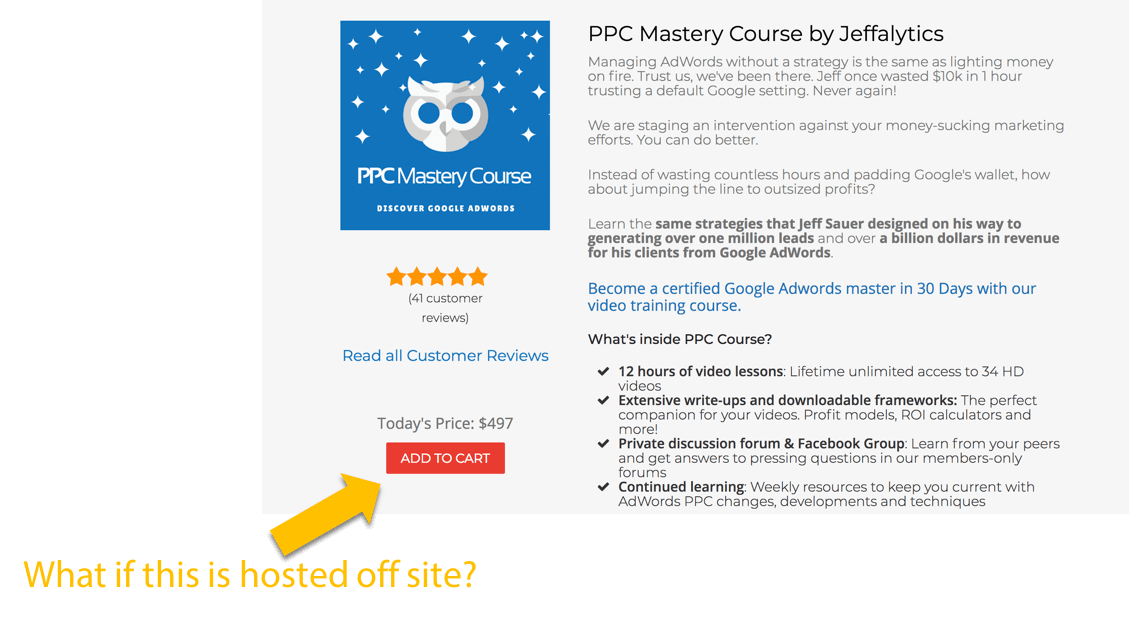
To see how this problem can affect our tracking let’s use the PPC Course product page as an example.

advanced conversion tacking for third-party websites

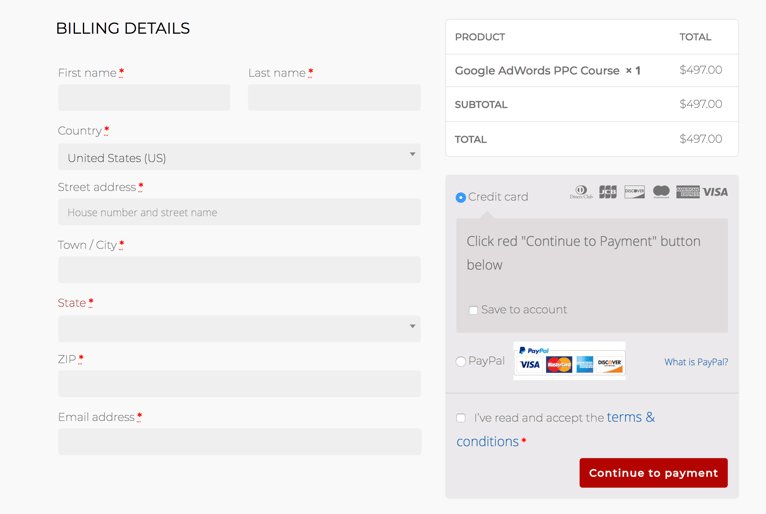
Now, I have my check out pages hosted on my own site. But if I had my cart hosted off-site, then my product link would take customers to a third-party website.

advanced conversion tracking for third party websites

Third-party checkout cart software is very common on large e-commerce platforms, like Shopify or Samcart.

If you’re using third-party shopping cart with AdWords, you have two options

1. Place your tracking code on the third-party thank you page.

Hopefully, you can get access to the code for the third-party site. If you can access the code, you can place your AdWords tracking pixel on the thank you page.

Getting your tracking pixel on the thank you page will allow you to record your AdWords conversions.

(We always recommend that you also track your AdWords data in Google Analytics. If you use third-party shopping cart software, you’ll need to do some extra work to track your analytics correctly. You may need to set up cross domain tracking. To learn more about cross domain tracking, you can check out this tutorial on Jeffalytics: How to Setup Cross-Domain Tracking in Google Analytics.)

Our second AdWords tracking option for third-party sites is less than ideal. But sometimes this option is the only way to get the job done.

2.  Fire your conversion code “on button click.”

This strategy involves triggering your conversion before your lead hits the third-party site.

Using the PPC Course product page as our example again, we would fire the conversion trigger when a customer clicks the add to cart button.

You can write a JavaScript function to fire the AdWords conversion tag when the button is clicked, and this will count as a conversion.

The reason this option is not ideal is that you wind up tracking only part of the conversion action.

An add-to-cart button click is not the same thing as a conversion. Since you’re only tracking a fraction of the action, you need to adjust your conversion value.

Calculating implied conversion values

Calculating a conversion value in this scenario is similar to choosing inferred goal values in Google Analytics.

You can use the same framework we cover in this Google Analytics tutorial to select an implied conversion value fro AdWords – How to Choose a Google Analytics Goal Value.

implied goal valeus

Adjusting your conversion values in your code

But, there’s also another problem with this type of conversion tracking. It requires you to use code. You need to send your implied conversion value into AdWords. So, you have to do this in the tracking code on your website. Or you have to create an event in GTM, which records your conversion value in AdWords.

And now we’re getting into some truly advanced conversion tracking tactics. So this is where we’ll wrap this up this post for now.

Advanced conversion tracking – how to write the JavaScript function and fire the conversion code

Do you want me to show you how to write an AdWords conversion tracking code, or create custom conversion tracking events in GTM?

If you’re interested in an advanced AdWords conversion tracking tutorial that’s all about the code, leave a comment below.

If we get enough comments, I’ll consider doing a full tutorial on the technical details of AdWords tracking code.


This post and video was episode 86 in our 90 Day Challenge digital marketing series.

To get access to all 90 videos, subscribe to our YouTube channel. YouTube will send our subscribers weekly emails about all the videos we published over the past week.

Want to know about each video and post as soon as it comes out? Sign up for the 90-day challenge email newsletter. The newsletter will be the best way to make sure you don’t miss any of the content.

Filed Under: PPC News

  • Page 1
  • Page 2
  • Page 3
  • Interim pages omitted …
  • Page 11
  • Go to Next Page »

Primary Sidebar

Latest PPC Resources

  • Google AdWords and GDPR Compliance: How GDPR affects AdWords tracking and targeting
  • Automatic AdWords Ad Suggestions – Let them run or turn them off?
  • Google Marketing Platform and Google Ads – 3 Major Innovations You Need to Know About
  • Google Keyword Planner Guide 2018: Tips, Hacks and Strategies for the GKP
  • The Google Ads Optimization Score – How to use (and not use) this new report

Copyright © 2006 - 2023 · Digital Mantis, Inc.